Getting Started with Waveshare ESP32-S3-Zero Wi-Fi & Bluetooth Development Board
Learn how to use the ESP32-S3-Zero compact Wi-Fi and Bluetooth development board from Waveshare. Use Arduino, ESP-IDF, PlatformIO and VS Code for software development.
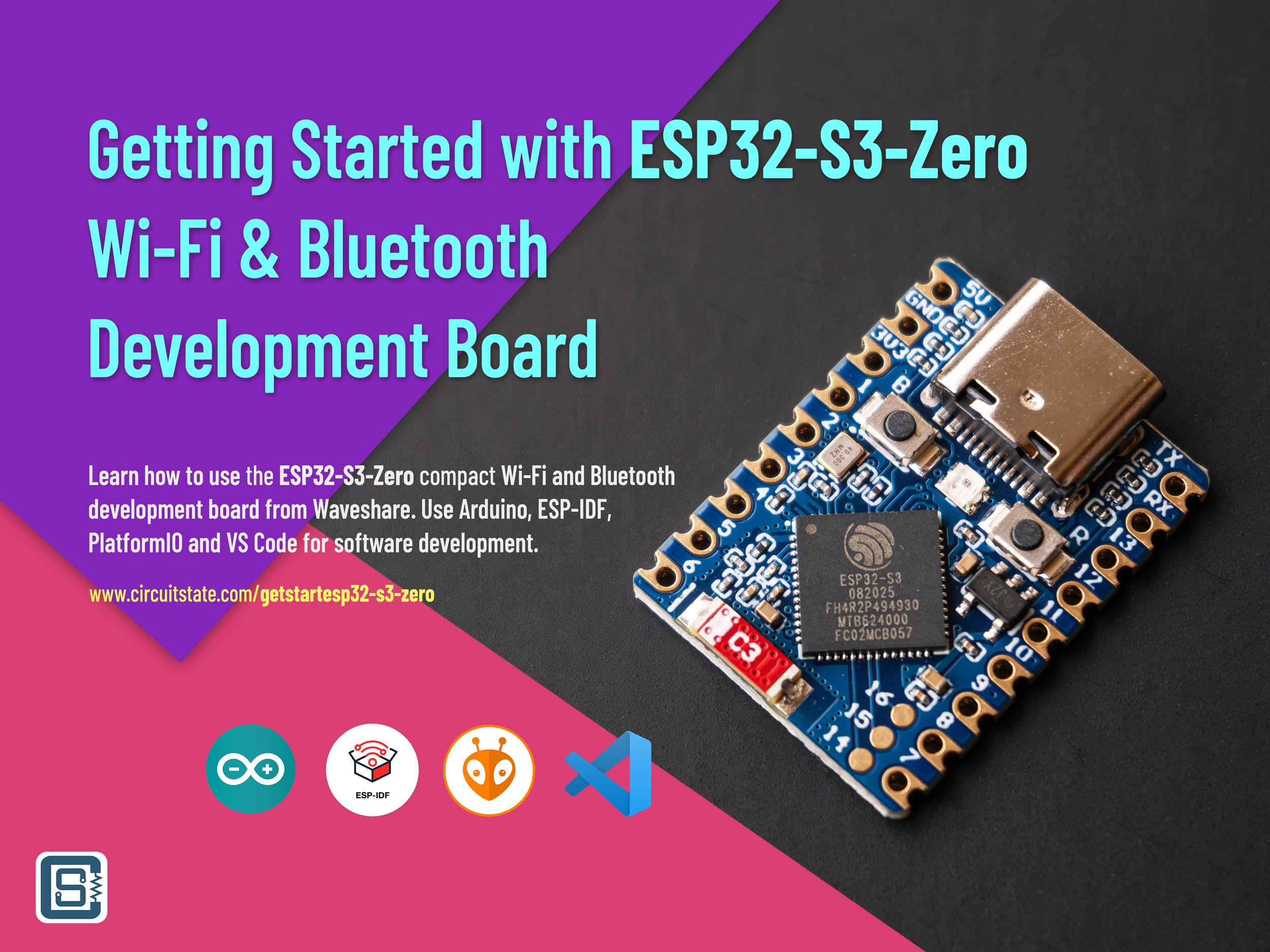
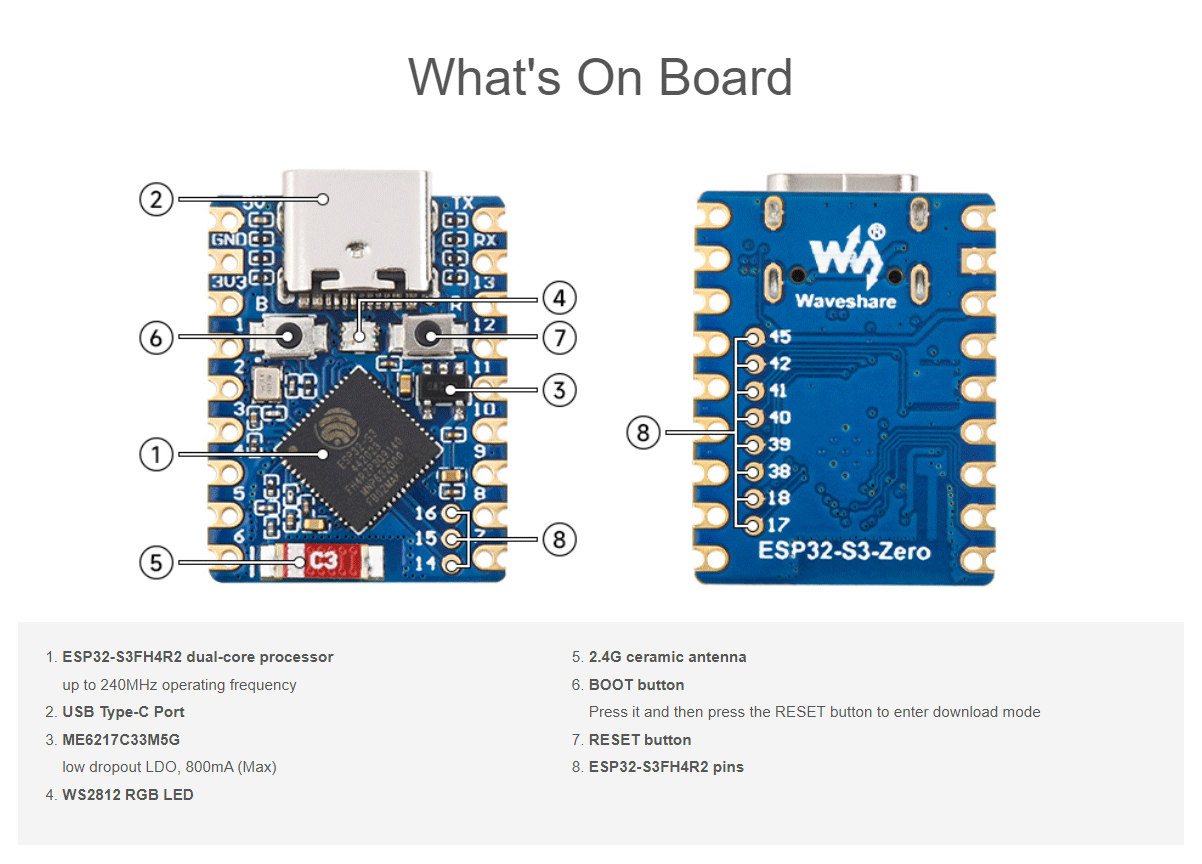
The ESP32 microcontrollers from Espressif is everyone’s favourite and they come in a variety of sizes and shapes of boards. The familiar one is a long-form factor breadboard-compatible one like the ESP32-DevKit. But there can be times when a smaller size would be beneficial to either reduce the size of your project or to reduce the weight. The ESP32-S3-Zero from Waveshare is one such board. It has a size of just 18 x 23.5 mm, or the size of a typical postal stamp. Never mind if you have never seen a postal stamp before. It’s small, that’s it. For it’s tiny size it comes with everything it needs – a full size USB-C, one reset button, one boot button, one RGB LED, voltage regulator and a chip antenna. With castellated pads and extra breakout pads, you can place this board directly on a breadboard or solder it to another carrier board. In this post, we will take a closer look at this board and show you how you can this tiny but mighty board for new projects. If you want to read our previous ESP32-S3 tutorial, check out the post below.
Getting Started with ESP32-S3 Wi-Fi & Bluetooth SoC using ESP32-S3-DEV-KIT-NxR8
Learn how to use Espressif ESP32-S3 SoC for Wi-Fi and Bluetooth development using the Waveshare ESP32-S3-DEV-KIT-NxR8 development board. Use Arduino, ESP-IDF, PlatformIO and VS Code for software development.
Waveshare ESP32-S3-Zero
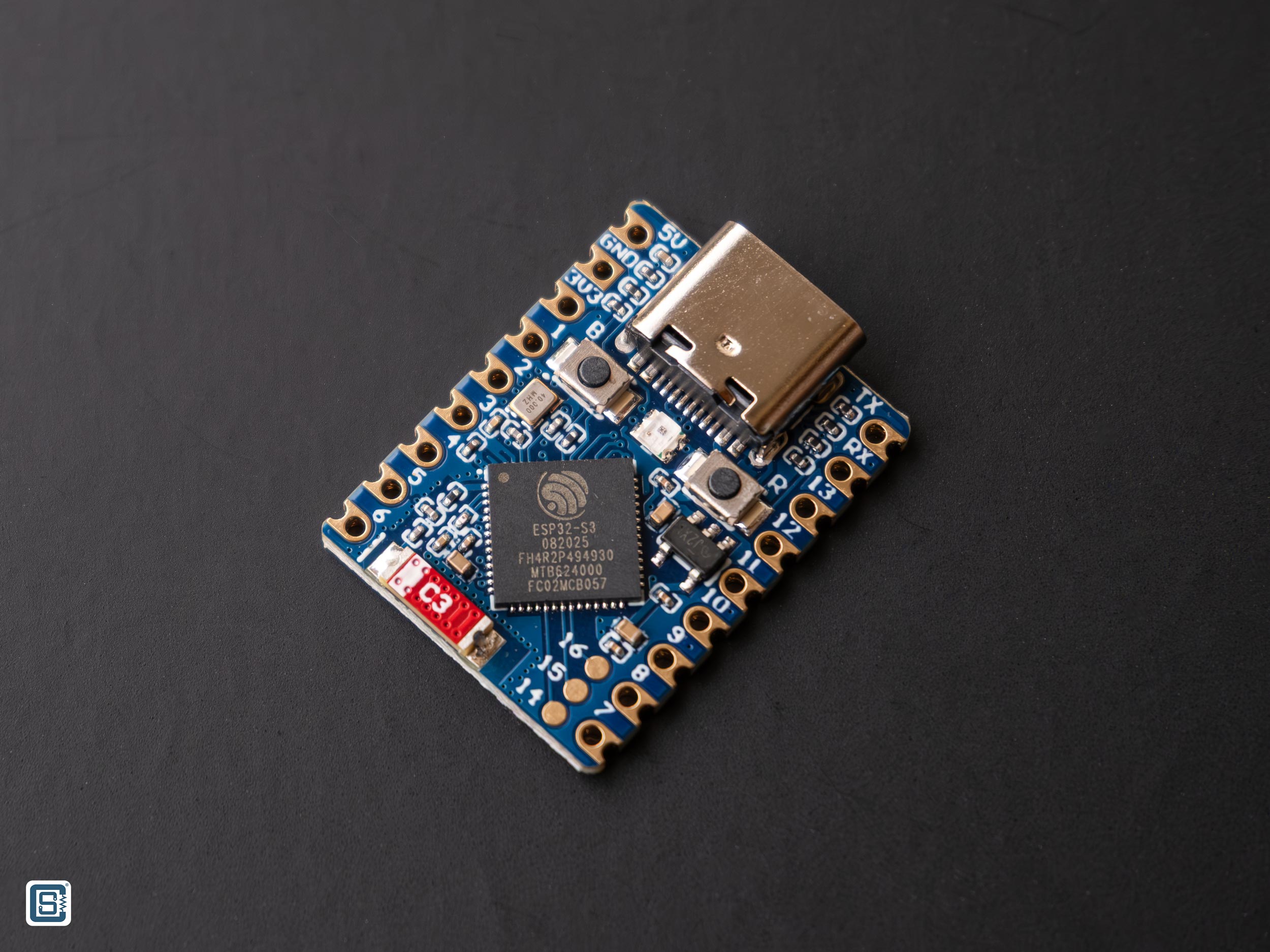
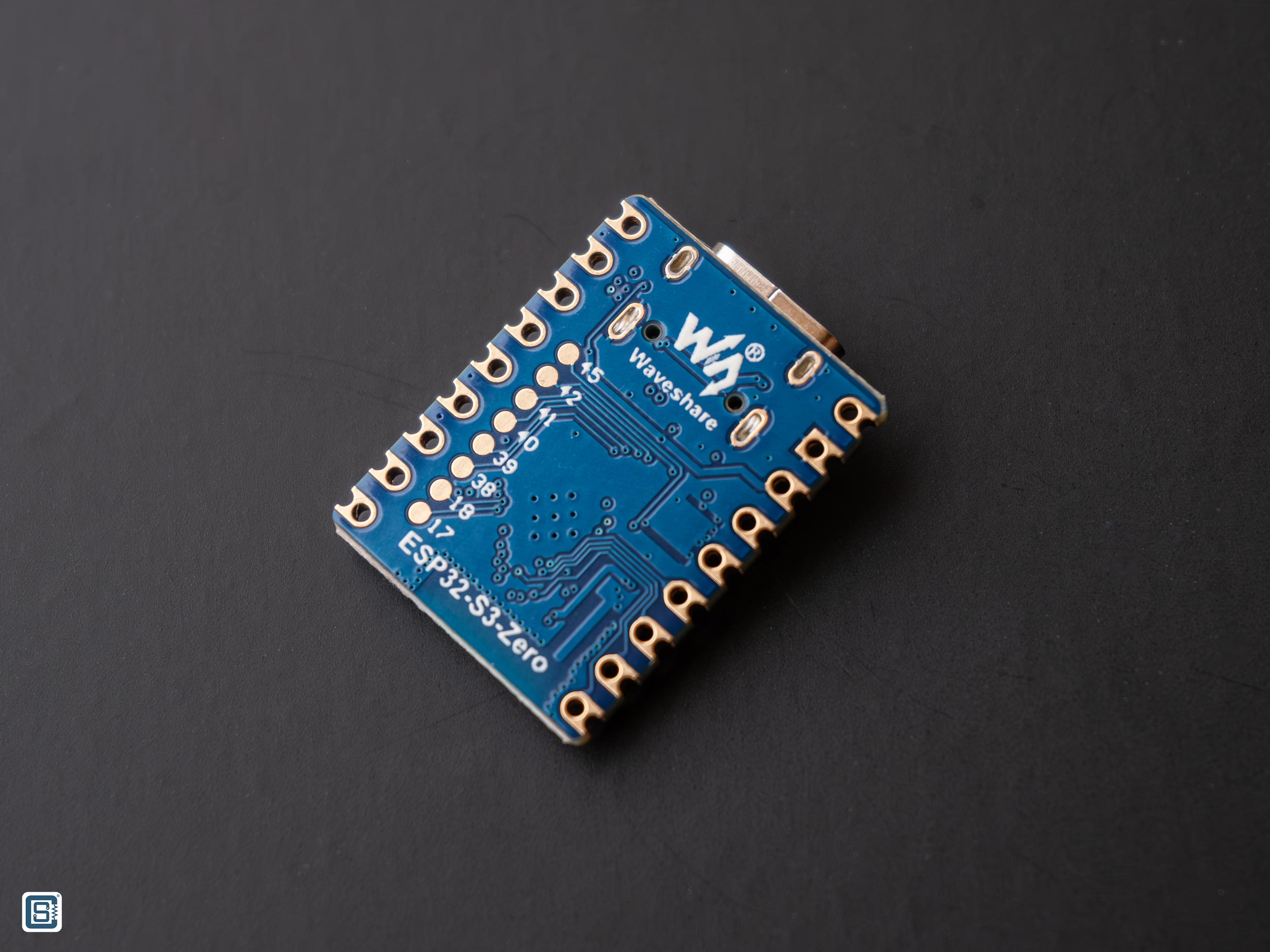
The ESP32-S3-Zero is a small form-factor development board from Waveshare, a Chinese manufacturer of electronic boards and modules. The board makes use of the ESP32-S3 dual-core,l 32-bit Xtensa microcontroller with up to 240 MHz of clock. Unlike the ESP32 modules, this board uses the bare chip ESP32-S3FH4R2 and it has a 4 MB Flash memory and 2 MB PSRAM embedded into it. This makes the design simpler and the board smaller. The board comes in two variants and 2 SKUs.
- ESP32-S3-Zero – One without the header pins soldered.
- ESP32-S3-Zero-M – One with the soldered header pins.
In this tutorial we are going to use the variant . Following are the remaining features of the board.
Features
- Uses ESP32-S3FH4R2 with either 4 MB integrated Flash memory and 2 MB integrated PSRAM.
- ESP32 integrates 512 KB SRAM, 384 KB ROM.
- USB-C connector for power, programming and data. Supports multiple peripherals interfaces simultaneously with the help of the native USB interface.
- Serial auto-programming support.
- 5V to 3.3V Low Dropout (LDO) voltage regulator with 800 mA max current.
- 24 GPIOs are broken out as a combination of pins and pads.
- Integrated C3 PCB-Chip antenna (not ceramic) for Wi-Fi and Bluetooth.
- Castellated pins and no components on the bottom side allows soldering directly to carrier boards.
- Reset and Boot buttons.
- WS2812B serial RGB LED.
- Power LED on the 3.3V line.
- Breadboard-friendly form-factor.
Topology
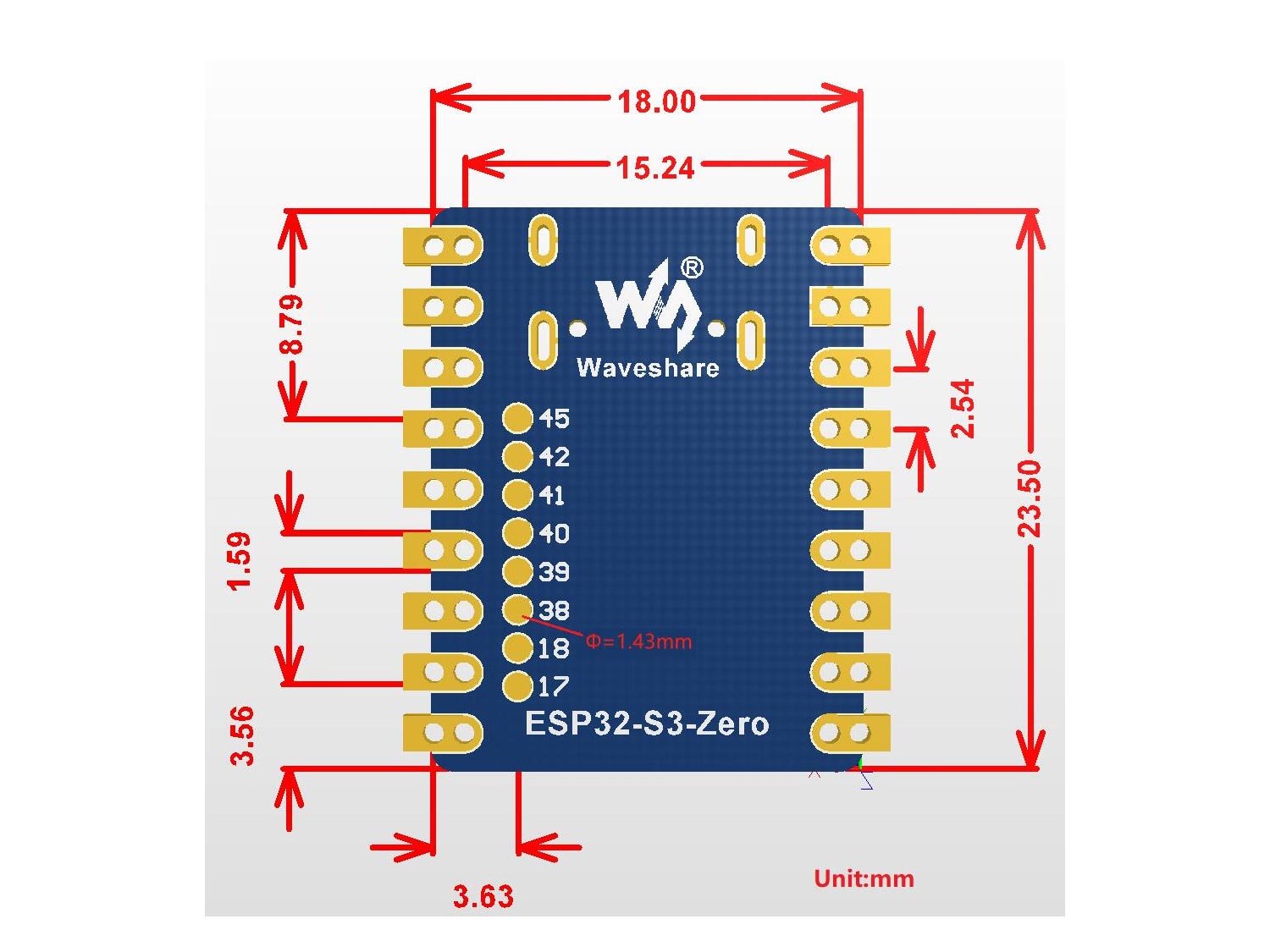
Dimensions
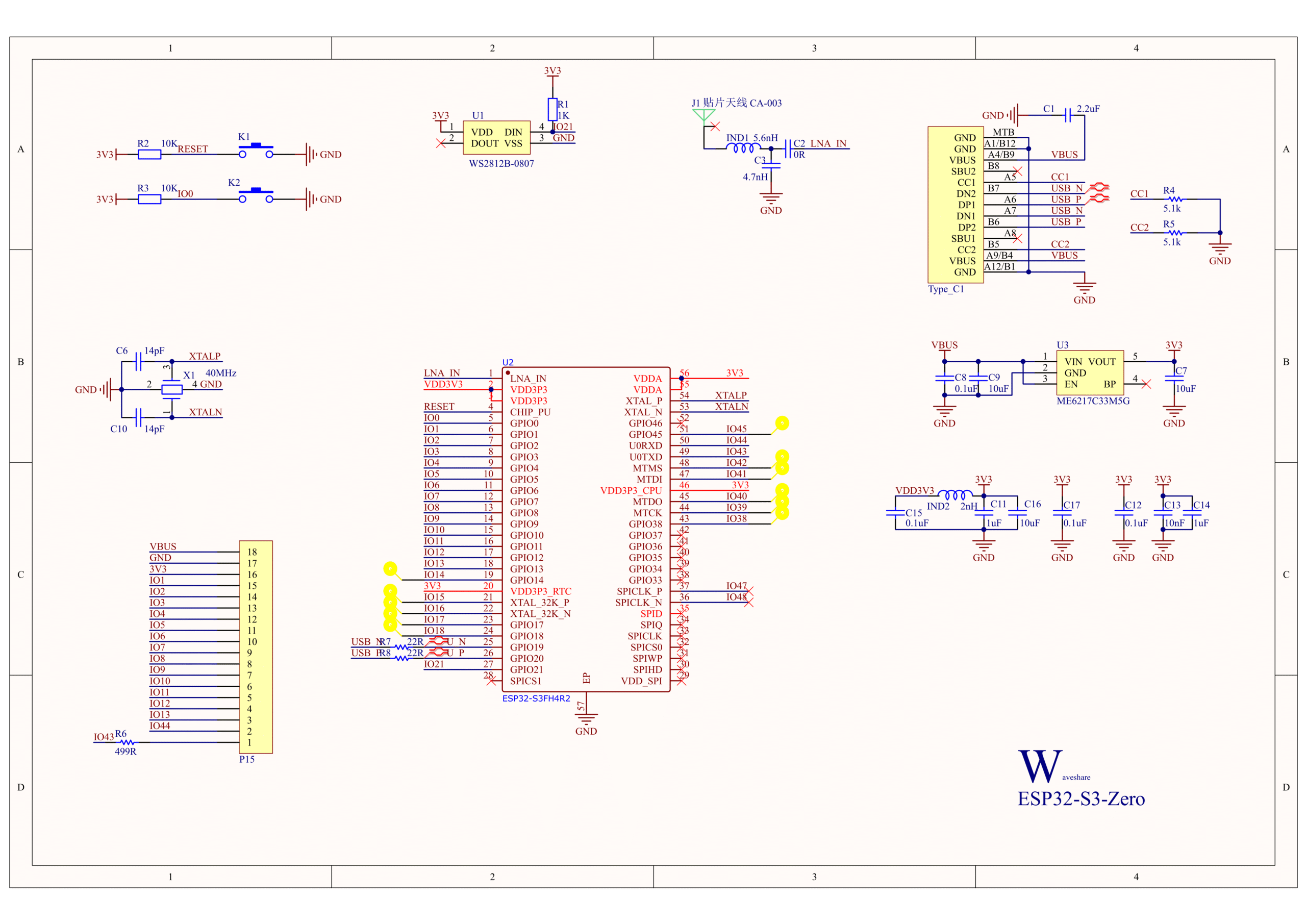
Schematic
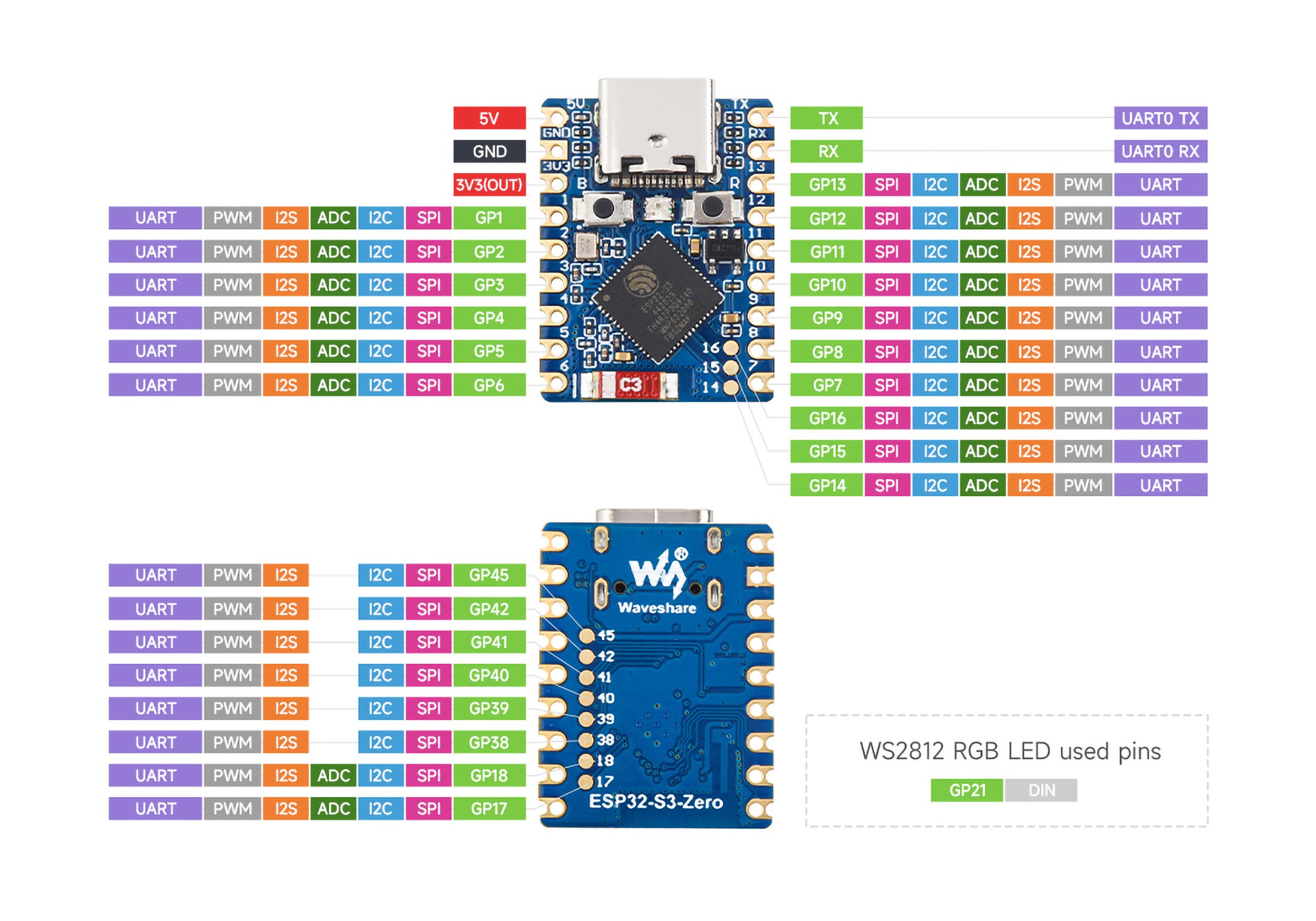
Pinout
Following is the pinout diagram of Waveshare ESP32-S3-Zero board. We have not created a vector pinout diagram for this board yet. So for now you have to stick with this low quality pinout.
ESP32-S3 SoC
ESP32 is a family of SoCs (System-on-Chip) from Espressif. But when it was first introduced, there was only one SoC called simply “ESP32”. As the company added more products to the line-up, it became a family. The first ESP32 was simply called “ESP32” without any prefix or suffix to the family name. But the term ESP32 is also used for talking about the ESP32 family of SoCs and modules. So if you see the term ESP32, it could mean the ESP32 family, or the first version of the chip.
ESP32 is precisely a System-on-Chip. This is because the chip die integrates more than a typical microcontroller does. The ESP32 integrates entire RF front-ends and MAC for Bluetooth and Wi-Fi into a single chip. The CPU used in ESP32 is a dual-core Xtensa LX6 from Tensilica (now Cadence). The Xtensa is a 32-bit RISC core IP that is different from ARM, AVR, 8051, and others. The Xtensa cores are supported by GCC-based Xtensa toolchain for development. ESP32-S3 is a more recent variant from the ESP32 family. Below is a list of the currently available SoC variants in the ESP family from Espressif.
| SoC Family | CPU | Core Count | Frequency | Bluetooth | WiFi |
|---|---|---|---|---|---|
| ESP8266EX | Xtensa 32-bit L106 | 1 | 160 MHz | N/A | IEEE 802.11 b/g/n; 2.4 GHz; HT20; up to 75 Mbps |
| ESP8285 | Xtensa 32-bit L106 | 1 | 160 MHz | N/A | IEEE 802.11 b/g/n; 2.4 GHz; HT20; up to 75 Mbps |
| ESP32 | Xtensa 32-bit LX6 CPU | 2 | 240 MHz | BR/EDR + Bluetooth LE v4.2 | IEEE 802.11 b/g/n; 2.4 GHz; HT20/40; up to 150 Mbps |
| ESP32-S2 | Xtensa 32-bit LX7 | 1 | 240 MHz | N/A | IEEE 802.11 b/g/n; 2.4 GHz; HT20/40; up to 150 Mbps |
| ESP32-C3/ESP8685 | 32-bit RISC-V | 1 | 160 MHz | Bluetooth LE v5.0 | IEEE 802.11 b/g/n; 2.4 GHz; HT20/40; up to 150 Mbps |
| ESP32-S3 | Xtensa 32-bit LX7 | 2 | 240 MHz | Bluetooth LE v5.0 | IEEE 802.11 b/g/n; 2.4 GHz; HT20/40; up to 150 Mbps |
| ESP32-C2/ESP8684 | 32-bit RISC-V | 1 | 120 MHz | Bluetooth LE v5.0 | IEEE 802.11 b/g/n; 2.4 GHz; HT20; up to 150 Mbps |
| ESP32-C6 | 32-bit RISC-V | 1 | 160 MHz | Bluetooth LE v5.3 | IEEE 802.11 b/g/n; 2.4 GHz; HT20/40; up to 150 Mbps |
| ESP32-H2 | 32-bit RISC-V | 1 | 96 MHz | Bluetooth LE v5.0 | N/A |
| ESP32-P4 | 32-bit RISC-V | 3 | 360 MHz | N/A | N/A |
You can check out the ESP Product Selector to learn more about the different types of ESP32 SoCs and their features. In addition to different subfamilies of SoCs, each SoC also has different variants based on some feature variations. ESP32-S3 SoC is available in the following variants.
| Ordering Code | In-Package Flash | In-Package PSRAM | Ambient Temp. (°C) | VDD SPI Voltage (V) | Chip Revision |
|---|---|---|---|---|---|
| ESP32-S3 | – | – | -40 ~ 105 | 3.3/1.8 | v0.1/v0.2 |
| ESP32-S3FN8 | 8 MB (Quad SPI) | – | -40 ~ 85 | 3.3 | v0.1/v0.2 |
| ESP32-S3RH2 | – | 2 MB (Quad SPI) | -40 ~ 105 | 3.3 | v0.2 |
| ESP32-S3R8 | – | 8 MB (Octal SPI) | -40 ~ 65 | 3.3 | v0.1/v0.2 |
| ESP32-S3R16V | – | 16 MB (Octal SPI) | -40 ~ 65 | 1.8 | v0.2 |
| ESP32-S3FH4R2 | 4 MB (Quad SPI) | 2 MB (Quad SPI) | -40 ~ 85 | 3.3 | v0.1/v0.2 |
| ESP32-S3R8V (EOL) | – | 8 MB (Octal SPI) | -40 ~ 65 | 1.8 | v0.1/v0.2 |
| ESP32-S3R2 (EOL) | – | 2 MB (Quad SPI) | -40 ~ 85 | 3.3 | v0.1/v0.2 |
ESP32-S3 is a dual-core 32-bit Xtensa LX7 CPU with an additional low-power core (ULP). The main improvements to the ESP32-S3 over the ESP32 are the more number of GPIOs and the USB interface. But this comes with removal of the Ethernet interface and the Bluetooth Classic.

To give you a familiar context, the Arduino Uno uses an ATmega328P AVR microcontroller with a single core inside. Compared to an Arduino Uno, ESP32-S3 is much more powerful as shown in the comparison table below.
| Property | ESP32-S3 | ATmega328P (Uno) |
|---|---|---|
| Core Type | Xtensa LX6 | AVR |
| Instruction Type | RISC | RISC |
| Instruction Size | 32-bit | 8-bit |
| Core Count | 2 | 1 |
| Maximum Clockspeed | 240 MHz | 20 MHz |
| SRAM | 512 KB | 2 KB |
| Flash Size | Up to 16 MB | 32 KB |
| GPIO Count | 45 | 23 |
| ADC Resolution | 12 bit | 10 bit |
| PWM | All GPIO pins | Limited GPIO pins |
| Interrupt | All GPIO pins | 2 GPIO pins |
| UART | 3 | 1 |
| SPI | 4 | 1 |
| I2C | 2 | 1 |
| I2S | 2 | 0 |
| CAN (TWAI) | 1 | 0 |
| DAC | 0 | 0 |
| Touch Input | 14 | 0 |
| LCD | 1 | 0 |
| SDIO | 1 | 0 |
| Ethernet | 0 | 0 |
| USB | 1 | No |
| Price | ~$2.3 | ~$2.7 |
| Firmware Lock Protection | Yes | Yes |
| Working Voltage | 2.3 to 3.6V | 1.8 to 5.5V |
The more the CPU frequency the faster it can execute your code. Similarly, large memory width and instruction size make accessing memory and executing instructions faster. Therefore the computing throughput of an ESP32-S3 SoC is much higher than an average 8-bit microcontroller. This is what allows ESP to run web servers or drive large LCD displays. ESP32 also integrates a large 520 KB of SRAM (Static RAM), 448 KB ROM (not usable), and optionally up to 16 MB flash memory and 8 MB PSRAM (Pseudo Static RAM). Some variants come with internal flash and PSRAM capacities so that you can reduce the BoM cost and PCB area.
In terms of peripherals, ESP32-S3 comes with all modern hardware peripherals such as multiple UART, SPI, I2C, I2S, CAN, SDIO, USB, and ADC. Most of the peripheral functions can be mapped to any GPIO pins of the ESP32, thanks to the IO multiplexer.
Features & Specifications
- Wi-Fi
- IEEE 802.11b/g/n-compliant
- Supports 20 MHz, 40 MHz bandwidth in 2.4 GHz band
- 1T1R mode with data rate up to 150 Mbps
- Wi-Fi Multimedia (WMM)
- TX/RX A-MPDU, TX/RX A-MSDU
- Immediate Block ACK
- Fragmentation and defragmentation
- Automatic Beacon monitoring (hardware TSF)
- 4 × virtual Wi-Fi interfaces
- Simultaneous support for Infrastructure BSS in Station, SoftAP, or Station + SoftAP modes Note that when ESP32-S3 scans in Station mode, the SoftAP channel will change along with the Station channel
- Antenna diversity
- 802.11mc FTM
- Bluetooth
- Bluetooth LE: Bluetooth 5, Bluetooth mesh
- High power mode (20 dBm)
- Speed: 125 Kbps, 500 Kbps, 1 Mbps, 2 Mbps
- Advertising extensions
- Multiple advertisement sets
- Channel selection algorithm #2
- Internal co-existence mechanism between Wi-Fi and Bluetooth to share the same antenna
- CPU and Memory
- Xtensa® dual-core 32-bit LX7 microprocessor, up to 240 MHz
- 128-bit data bus and SIMD commands
- 384 KB ROM
- 512 KB SRAM
- 16 KB SRAM in RTC
- SPI, Dual SPI, Quad SPI, Octal SPI, QPI and OPI interfaces that allow connection to multiple flash and external RAM
- Flash controller with cache is supported
- Flash In-Circuit Programming (ICP) is supported
- CoreMark® scores:
- 1 core at 240 MHz: 613.86 CoreMark; 2.56 CoreMark/MHz
- 2 cores at 240 MHz: 1181.60 CoreMark; 4.92 CoreMark/MHz
- Advanced Peripheral Interfaces
- 45 × programmable GPIOs
- Digital interfaces:
- 4 × SPI
- 1 × LCD interface (8-bit ~16-bit parallel RGB, I8080 and MOTO6800), supporting conversion between RGB565, YUV422, YUV420 and YUV411
- 1 × DVP 8-bit ~16-bit camera interface
- 3 × UART
- 2 × I2C
- 2 × I2S
- 1 × RMT (TX/RX)
- 1 × pulse counter
- LED PWM controller, up to 8 channels
- 1 × full-speed USB OTG
- 1 × USB Serial/JTAG controller
- 2 × MCPWM
- 1 × SD/MMC host controller with 2 slots
- General DMA controller (GDMA), with 5 transmit channels and 5 receive channels
- 1 × TWAI controller, compatible with ISO
- 11898-1 (CAN Specification 2.0)
- Analog interfaces:
- 2 × 12-bit SAR ADCs, up to 20 channels
- 1 × temperature sensor
- 14 × touch-sensing IOs
- Timers:
- 4 × 54-bit general-purpose timers
- 1 × 52-bit system timer
- 3 × watchdog timers
- Low Power Management
- Power Management Unit with five power modes
- Ultra-Low-Power (ULP) coprocessors:
- ULP-RISC-V coprocessor
- ULP-FSM coprocessor
- Security
- Secure boot
- Flash encryption
- 4-Kbit OTP, up to 1792 bits for users
- Cryptographic hardware acceleration:
- AES-128/256 (FIPS PUB 197)
- Hash (FIPS PUB 180-4)
- RSA
- Random Number Generator (RNG)
- HMAC
- Digital signature
Pinout

Chip Revisions
One thing you have to look out for when selecting ESP32 chips is the chip revision. Most modern ICs are designed programmatically using a set of instructions. Sometimes there can be bugs that make it into the semiconductor fabrication stage and can not be fixed by software. Such bugs are fixed with workarounds as a temporary solution. For a permanent solution, the chip design is revised and a new version is produced to replace the affected ones. ESP32 also underwent multiple chip revisions, fixing bugs in each version. When you order new chips and modules, you have to make sure you are getting the latest version. This can be determined by either part labels, or by checking the manufacturing date (week or year code). The following image shows how the marking appears on the chip.

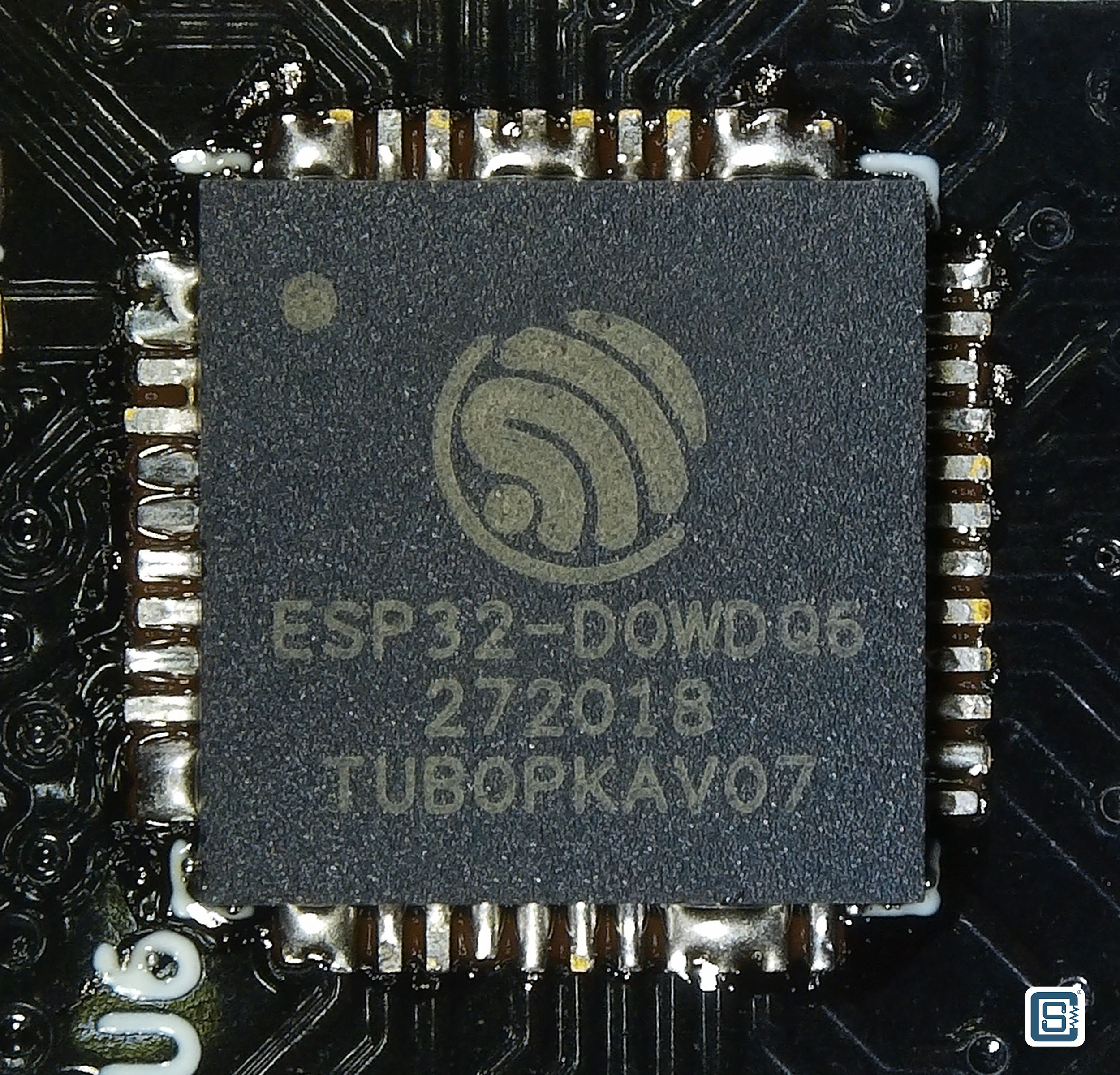
For example, in the image of ESP32-D0WDQ6, the date code is 272018 which translates to week 27 of the year 2018, and the TUB0PKAV07 is the main die serial number. According to Espressif documents, the second character of the chip die should indicate the chip revision. However, the character “U” is not a valid one according to the following table. So we assume it is the third character “B” that is the revision indicator.
| Chip Series | Chip Revision | Marking Indicator |
|---|---|---|
| ESP32 | v0.0 | A |
| v1.0 | B | |
| v1.1 | F | |
| v3.0 | E | |
| v3.1 | G | |
| ESP32-S2 | v0.0 | A |
| v1.0 | B | |
| ESP32-C3 | v0.0 | A |
| v0.1 | B | |
| v0.2 | C | |
| v0.3 | D | |
| v0.4 | E | |
| ESP32-S3 | v0.0 | A |
| v0.1 | B | |
| v0.2 | C | |
| ESP32-C2/ESP8684 | v0.0 | A |
| v1.0 | AA | |
| v1.1 | B | |
| v1.2 | C | |
| ESP32-C6 | v0.0 | A |
| ESP32-H2 | v0.0 | A |
| v0.1 | B |
We are not sure why there is a discrepancy between the official documentation and the actual chip marking. Anyway, you now know how to identify the chip revisions. Additionally, the chip model and revision are printed by the esptool during uploading or can be printed with the following code in ESP-IDF or Arduino IDE. Refer to this ESP-IDF program for more info.
esp_chip_info_t chip_info;
esp_chip_info (&chip_info);
Serial.println ("Chip model: " + String (chip_info.model));
Serial.println ("Chip revision: " + String (chip_info.revision));You can find everything about chip revisions, bugs, and their workarounds in the official errata documents from Espressif.
Programming
Before we explain how you can develop software for your ESP32-S3 board using various frameworks and platforms, you should know a few things about the methods of programming an ESP32-S3 SoC and how it differs from other microcontrollers.
ESP32-S3 SoC has a JTAG (Joint Test Action Group) interface for programming and debugging. The JTAG functionality is assigned to GPIO pins given in the following table. You can use the official ESP-Prog debugger/programmer to program or debug your ESP32-S3 chips using the JTAG interface.
| Pin Name | GPIO | Function |
|---|---|---|
MTDI | 41 | Test Data In |
MTCK | 39 | Test Clock |
MTMS | 42 | Test Mode Select |
MTDO | 40 | Test Data Out |
However, the widely used interface for programming ESP32-S3 is not the JTAG, but a serial interface. The UART0 serial port of ESP32-S3 can be used to program the flash memory connected to the ESP32-S3. This is achieved with the help of a bootloader program saved in the ROM of the ESP32-S3. The 448 KB of ROM contains read-only programs that are critical for the functioning of the ESP32-S3 SoC. A user can not erase this program manually or accidentally. The presence of the bootloader prevents you from bricking the ESP32-S3 (you can still brick your ESP32-S3 if you want to) and makes recovery easy even if you did something wrong.
One of the jobs of the bootloader is to check the states of a few GPIO pins called strapping pins and initialize the SoC to different configurations. It can also detect when the user tries to program the flash via the UART0 port. Whenever it detects such an operation, it accepts the data coming through the serial port, writes it to the flash memory, and restarts the SoC. We will see this in action later.
The GPIO pins 43 (U0TXD) and 44 (U0RXD) are used for the UART0 interface by default. You can connect any USB-to-Serial converters such as CP2102, FT232, etc. to the serial port in order to connect an ESP32-S3 board to a computer and upload the firmware through the serial link. Before you can upload your firmware, you need to tell the bootloader about it. That can be done in two ways; by manually pressing the BOOT button or using an auto-programming circuit.
GPIO0 is a strapping pin and the bootloader will enter serial bootloader mode whenever it detects the pin state to be LOW during startup (after a power-up or restart). The GPIO0 is internally pulled up. When the pin state is HIGH, ESP32-S3 will execute the firmware in the flash memory as normal. GPIO0 pin is typically connected to a push-button which if pressed, will connect the GPIO0 to GND. You can find this button on the ESP32-S3-DEV-KIT-NXR8 board. You need to press both the BOOT button and RESET button together and release the RESET button first.
The manual activation of the BOOT button can be automated with a simple auto-programming circuit. This is achieved with the help of two complimentary signals DTR (Data Terminal Ready) and RTS (Request to Send) coming from a USB-Serial chip. These are called flow control pins (together with CTS (Clear to Send)).

The flow control pins can be controlled from the serial monitor provided by the operating system. In Windows, the flow control signals associated with a COM port can be controlled from apps like YAT. The two pins can be used to set the state of both the GPIO0 and RESET/EN pins of the ESP32-S3. When you try to upload a firmware file serially, the DTR and RTS pins are signalled appropriately to put the chip into serial bootloader mode. This removes the need to manually press the BOOT button on the board.
The software tool that takes care of driving the flow control pins and uploading the firmware is the esptool from Espressif. It is an open-source tool written in Python and it works on all operating systems. If you are curious, the reset.py script is what takes care of controlling the flow control pins.
System Organization
Before delving into software development, let’s learn a few things about the software side of things of ESP32-S3. This knowledge is crucial to understanding how your application is loaded and runs on an ESP32-S3.
Flash Partition
The ESP32-S3 SoC can be paired with up to 16 MB of flash memory for storing programs and data. To organize the data and programs better, the whole memory can be divided into separate logical sections called partitions. The starting address of each partition and their sizes will be stored in the flash memory. Such a list is called a partition table. ESP32-S3 partition table is stored at an offset 0x8000 (memory address) with a maximum size of 4 KB. A total of 95 entries can be stored in the table. Each entry in the partition table has a name (label), type (app, data, or something else), subtype, and the offset in flash where the partition is loaded. You can configure the partition table according to your application needs using the ESP-IDF tools. For example, the predefined partition table Default_16MB has the following partition scheme.
| # Name | Type | SubType | Offset | Size | Flags |
|---|---|---|---|---|---|
nvs | data | nvs | 0x9000 | 0x5000 | |
otadata | data | ota | 0xe000 | 0x2000 | |
app0 | app | ota_0 | 0x10000 | 0x640000 | |
app1 | app | ota_1 | 0x650000 | 0x640000 | |
spiffs | data | spiffs | 0xc90000 | 0x360000 | |
coredump | data | coredump | 0xFF0000 | 0x10000 |
# Name,   Type, SubType, Offset,  Size, Flags
nvs,      data, nvs,     0x9000,  0x5000,
otadata,  data, ota,     0xe000,  0x2000,
app0,     app,  ota_0,   0x10000, 0x640000,
app1,     app,  ota_1,   0x650000,0x640000,
spiffs,   data, spiffs,  0xc90000,0x360000,
coredump, data, coredump,0xFF0000,0x10000,nvs– Non-volatile storage.otadata– OTA data (stores which OTA partition is active).app0– First OTA firmware slot.app1– Second OTA firmware slotspiffs– SPIFFS filesystem (for files/data storage)coredump– Stores crash dumps for debugging
The app type partition contains executable programs and the data type contains any type of data. There are two app partitions because while one is actively being used the other can be used to download a firmware update. Once the new firmware is completely downloaded, ESP32-S3 can switch to the new partition. You can learn more about ESP32-S3 partitions from the ESP-IDF partition table documentation. If you want to see the default partitions supported by the ESP32-Arduino core, you can find them here.
ESP32-S3 Bootloader
We have already mentioned about the ESP32-S3 bootloader and one of its functions. The following is a set of all functions taken care of by the bootloader.
- Minimal initial configuration of internal modules.
- Initialize Flash Encryption and/or Secure features, if configured.
- Select the application partition to boot, based on the partition table and OTA data (if any).
- Load this image to RAM (IRAM & DRAM) and transfer management to the image that was just loaded.
The bootloader has two stages of execution.
- First Stage Bootloader in ROM loads the second-stage bootloader image to RAM (IRAM & DRAM) from flash offset
0x1000. - The Second Stage Bootloader loads the partition table and main app image from the flash.
Once the bootloader stages are complete the application can start executing. The second-stage bootloader can decide which app partition to execute. ESP32-S3 supports OTA (Over the Air) updates and a new version of your app can be loaded into the OTA partition of the flash. If the bootloader finds a new version of the app, it will start to execute that. You can learn more about how the bootloader works and how the startup process of an ESP32-S3 works from the ESP-IDF bootloader documentation.
FreeRTOS
A Real-Time Operating System (RTOS) for embedded systems helps us manage tasks and data in a better way than a simple infinite loop usually implemented on low-end microcontrollers. FreeRTOS is an open-source RTOS used by the ESP-IDF framework with a few modifications. With it, we can do multiple tasks parallelly, either in the same core or in different cores, and manage inter-process communication and synchronization. We have a dedicated tutorial covering FreeRTOS and how you can write parallel multitasking apps on ESP32 using Arduino.
How to Write Parallel Multitasking Applications for ESP32 using FreeRTOS & Arduino
Learn how to take advantage of the multitasking features of FreeRTOS for ESP32 dual-core SoC using your favorite Arduino IDE. Use our examples to learn about mutex, semaphore and critical section code.
Software Development
Software development for the ESP32 SoC family is carried out with the help of a GCC-based toolchain for Xtensa cores. For ESP32, Espressif has compiled them into a software development framework called ESP-IDF (Espressif IoT Development Framework). All official features and SoCs are first supported by the ESP-IDF before others. In addition to the ESP-IDF, Espressif also officially maintains the arduino-esp32 core for Arduino development. With it, you can write Arduino-style code and use all Arduino libraries with your ESP32-based boards. We will demo both ESP-IDF and Arduino-ESP32 frameworks in this tutorial.
Arduino IDE
The most popular way of developing software for ESP32 boards is through the Arduino Development Framework (ADF). Arduino is simple and intuitive in its design. But simple doesn’t mean it is less powerful. Because the Arduino ESP32 framework uses the same ESP-IDF framework and FreeRTOS for implementing your Arduino code on ESP32-S3. So pretty much everything you can do with ESP-IDF can be done with Arduino framework as well. Another reason why the Arduino framework is the favorite of makers is the availability of Arduino-style libraries. It saves you from writing libraries on your own and you can build faster with other open-source libraries. CIRCUITSTATE also develops and publishes open-source libraries that are compatible with ESP32. You can check them out on our GitHub.
Installing
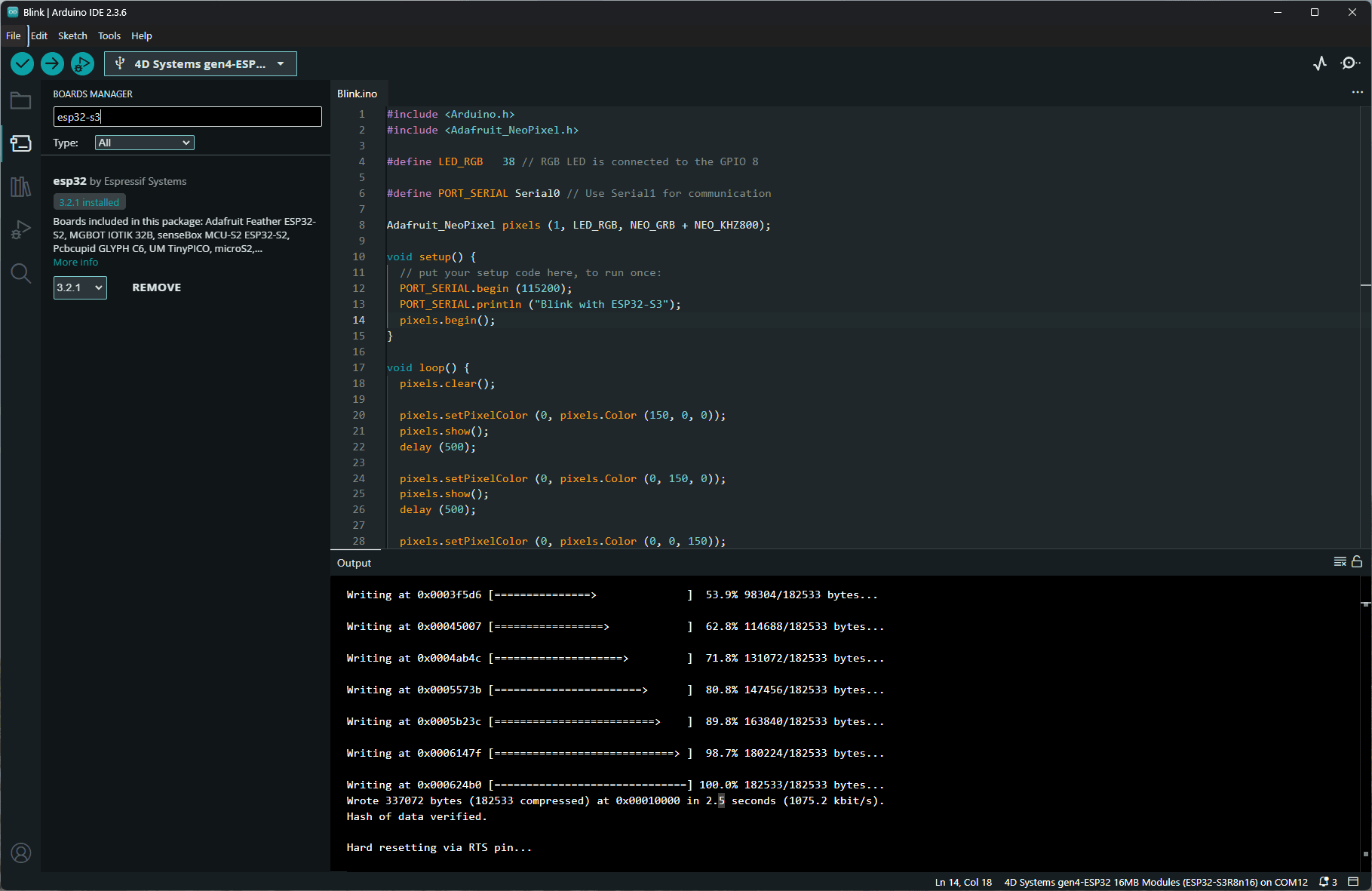
We will use the latest Arduino IDE 2 for this tutorial. You can use the Boards Manager of the Arduino IDE to search for “esp32” and install the package esp32 by Espressif Systems. You need to have an active internet connection for this to work. If you are unable to find the package, then go to Files → Preference → Additional boards manager URLs: and add the following URL on a new line.
https://espressif.github.io/arduino-esp32/package_esp32_index.jsonAfter saving the preferences, the boards index will be updated and you will be able to install it. The installation can take some time to finish. Wait until it finishes before doing anything else. If you are new to the Arduino IDE and want to learn more about it, we have a dedicated tutorial using the popular Arduino Uno board.

Getting Started with Arduino – Beginner’s Tutorial to Open-Source Hardware Prototyping with Arduino Uno
Learn electronics hardware prototyping and coding with the most popular Arduino open-source microcontroller platform. Learn how to write your first program and upload it to the Arduino Uno board.
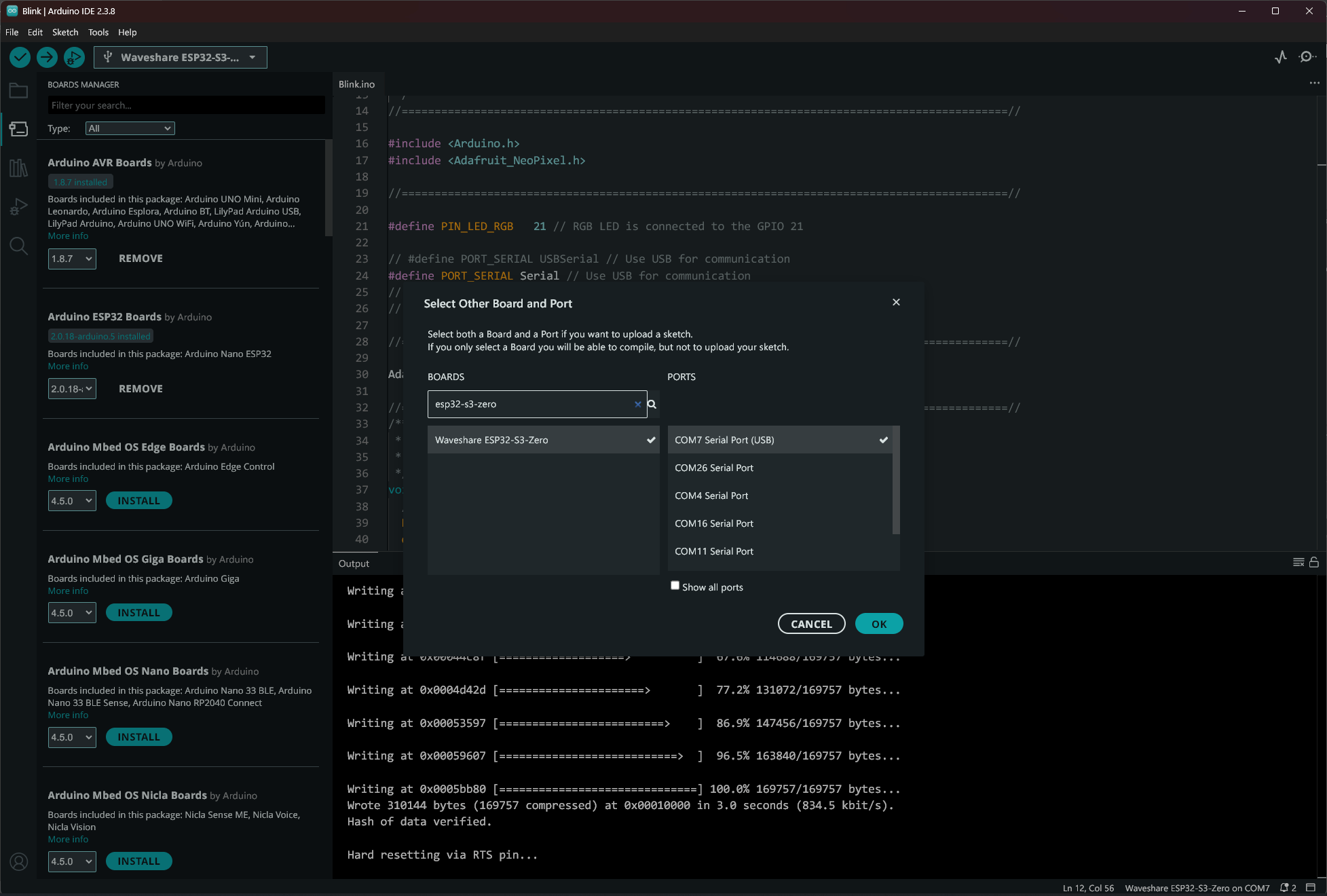
After installing everything, you can choose the board from the board selection drop-down menu and then clicking on the Select other board and port…. Then search for “esp32-s3-zero” and select the Waveshare ESP32-S3-Zero board and the COM port associated with it as shown in the screenshot below.
Board Definition
If you are wondering where the board definitions are, they are in the boards.txt file that contains all the definitions of the boards supported by the arduino-esp32 core. Whenever support for a new board is to be added, it is done by updating this file. The definition of the Waveshare ESP32-S3-Zero is given below.
##############################################################

waveshare_esp32_s3_zero.name=Waveshare ESP32-S3-Zero
waveshare_esp32_s3_zero.vid.0=0x303a
waveshare_esp32_s3_zero.pid.0=0x822B
waveshare_esp32_s3_zero.upload_port.0.vid=0x303a
waveshare_esp32_s3_zero.upload_port.0.pid=0x822B

waveshare_esp32_s3_zero.bootloader.tool=esptool_py
waveshare_esp32_s3_zero.bootloader.tool.default=esptool_py

waveshare_esp32_s3_zero.upload.tool=esptool_py
waveshare_esp32_s3_zero.upload.tool.default=esptool_py
waveshare_esp32_s3_zero.upload.tool.network=esp_ota

waveshare_esp32_s3_zero.upload.maximum_size=1310720

waveshare_esp32_s3_zero.upload.maximum_data_size=327680
waveshare_esp32_s3_zero.upload.flags=
waveshare_esp32_s3_zero.upload.extra_flags=
waveshare_esp32_s3_zero.upload.use_1200bps_touch=false
waveshare_esp32_s3_zero.upload.wait_for_upload_port=false

waveshare_esp32_s3_zero.serial.disableDTR=false
waveshare_esp32_s3_zero.serial.disableRTS=false

waveshare_esp32_s3_zero.build.tarch=xtensa
waveshare_esp32_s3_zero.build.bootloader_addr=0x0
waveshare_esp32_s3_zero.build.target=esp32s3
waveshare_esp32_s3_zero.build.mcu=esp32s3
waveshare_esp32_s3_zero.build.core=esp32
waveshare_esp32_s3_zero.build.variant=waveshare_esp32_s3_zero
waveshare_esp32_s3_zero.build.board=WAVESHARE_ESP32_S3_ZERO

waveshare_esp32_s3_zero.build.usb_mode=1
waveshare_esp32_s3_zero.build.cdc_on_boot=0
waveshare_esp32_s3_zero.build.msc_on_boot=0
waveshare_esp32_s3_zero.build.dfu_on_boot=0
waveshare_esp32_s3_zero.build.f_cpu=240000000L
waveshare_esp32_s3_zero.build.flash_size=4MB
waveshare_esp32_s3_zero.build.flash_freq=80m
waveshare_esp32_s3_zero.build.flash_mode=dio
waveshare_esp32_s3_zero.build.boot=qio
waveshare_esp32_s3_zero.build.boot_freq=80m
waveshare_esp32_s3_zero.build.partitions=default
waveshare_esp32_s3_zero.build.defines=
waveshare_esp32_s3_zero.build.loop_core=
waveshare_esp32_s3_zero.build.event_core=
waveshare_esp32_s3_zero.build.psram_type=qspi
waveshare_esp32_s3_zero.build.memory_type={build.boot}_{build.psram_type}

waveshare_esp32_s3_zero.menu.PSRAM.disabled=Disabled
waveshare_esp32_s3_zero.menu.PSRAM.disabled.build.defines=
waveshare_esp32_s3_zero.menu.PSRAM.disabled.build.psram_type=qspi
waveshare_esp32_s3_zero.menu.PSRAM.enabled=Enabled
waveshare_esp32_s3_zero.menu.PSRAM.enabled.build.defines=-DBOARD_HAS_PSRAM
waveshare_esp32_s3_zero.menu.PSRAM.enabled.build.psram_type=qspi

waveshare_esp32_s3_zero.menu.FlashMode.qio=QIO 80MHz
waveshare_esp32_s3_zero.menu.FlashMode.qio.build.flash_mode=dio
waveshare_esp32_s3_zero.menu.FlashMode.qio.build.boot=qio
waveshare_esp32_s3_zero.menu.FlashMode.qio.build.boot_freq=80m
waveshare_esp32_s3_zero.menu.FlashMode.qio.build.flash_freq=80m
waveshare_esp32_s3_zero.menu.FlashMode.qio120=QIO 120MHz
waveshare_esp32_s3_zero.menu.FlashMode.qio120.build.flash_mode=dio
waveshare_esp32_s3_zero.menu.FlashMode.qio120.build.boot=qio
waveshare_esp32_s3_zero.menu.FlashMode.qio120.build.boot_freq=120m
waveshare_esp32_s3_zero.menu.FlashMode.qio120.build.flash_freq=80m

waveshare_esp32_s3_zero.menu.LoopCore.1=Core 1
waveshare_esp32_s3_zero.menu.LoopCore.1.build.loop_core=-DARDUINO_RUNNING_CORE=1
waveshare_esp32_s3_zero.menu.LoopCore.0=Core 0
waveshare_esp32_s3_zero.menu.LoopCore.0.build.loop_core=-DARDUINO_RUNNING_CORE=0

waveshare_esp32_s3_zero.menu.EventsCore.1=Core 1
waveshare_esp32_s3_zero.menu.EventsCore.1.build.event_core=-DARDUINO_EVENT_RUNNING_CORE=1
waveshare_esp32_s3_zero.menu.EventsCore.0=Core 0
waveshare_esp32_s3_zero.menu.EventsCore.0.build.event_core=-DARDUINO_EVENT_RUNNING_CORE=0

waveshare_esp32_s3_zero.menu.USBMode.hwcdc=Hardware CDC and JTAG
waveshare_esp32_s3_zero.menu.USBMode.hwcdc.build.usb_mode=1
waveshare_esp32_s3_zero.menu.USBMode.default=USB-OTG (TinyUSB)
waveshare_esp32_s3_zero.menu.USBMode.default.build.usb_mode=0

waveshare_esp32_s3_zero.menu.CDCOnBoot.default=Enabled
waveshare_esp32_s3_zero.menu.CDCOnBoot.default.build.cdc_on_boot=1
waveshare_esp32_s3_zero.menu.CDCOnBoot.cdc=Disabled
waveshare_esp32_s3_zero.menu.CDCOnBoot.cdc.build.cdc_on_boot=0

waveshare_esp32_s3_zero.menu.MSCOnBoot.default=Disabled
waveshare_esp32_s3_zero.menu.MSCOnBoot.default.build.msc_on_boot=0
waveshare_esp32_s3_zero.menu.MSCOnBoot.msc=Enabled (Requires USB-OTG Mode)
waveshare_esp32_s3_zero.menu.MSCOnBoot.msc.build.msc_on_boot=1

waveshare_esp32_s3_zero.menu.DFUOnBoot.default=Disabled
waveshare_esp32_s3_zero.menu.DFUOnBoot.default.build.dfu_on_boot=0
waveshare_esp32_s3_zero.menu.DFUOnBoot.dfu=Enabled (Requires USB-OTG Mode)
waveshare_esp32_s3_zero.menu.DFUOnBoot.dfu.build.dfu_on_boot=1

waveshare_esp32_s3_zero.menu.UploadMode.default=UART0 / Hardware CDC
waveshare_esp32_s3_zero.menu.UploadMode.default.upload.use_1200bps_touch=false
waveshare_esp32_s3_zero.menu.UploadMode.default.upload.wait_for_upload_port=false
waveshare_esp32_s3_zero.menu.UploadMode.cdc=USB-OTG CDC (TinyUSB)
waveshare_esp32_s3_zero.menu.UploadMode.cdc.upload.use_1200bps_touch=true
waveshare_esp32_s3_zero.menu.UploadMode.cdc.upload.wait_for_upload_port=true

waveshare_esp32_s3_zero.menu.PartitionScheme.default=Default 4MB with spiffs (1.2MB APP/1.5MB SPIFFS)
waveshare_esp32_s3_zero.menu.PartitionScheme.default.build.partitions=default
waveshare_esp32_s3_zero.menu.PartitionScheme.defaultffat=Default 4MB with ffat (1.2MB APP/1.5MB FATFS)
waveshare_esp32_s3_zero.menu.PartitionScheme.defaultffat.build.partitions=default_ffat
waveshare_esp32_s3_zero.menu.PartitionScheme.no_ota=No OTA (2MB APP/2MB SPIFFS)
waveshare_esp32_s3_zero.menu.PartitionScheme.no_ota.build.partitions=no_ota
waveshare_esp32_s3_zero.menu.PartitionScheme.no_ota.upload.maximum_size=2097152
waveshare_esp32_s3_zero.menu.PartitionScheme.noota_3g=No OTA (1MB APP/3MB SPIFFS)
waveshare_esp32_s3_zero.menu.PartitionScheme.noota_3g.build.partitions=noota_3g
waveshare_esp32_s3_zero.menu.PartitionScheme.noota_3g.upload.maximum_size=1048576
waveshare_esp32_s3_zero.menu.PartitionScheme.noota_ffat=No OTA (2MB APP/2MB FATFS)
waveshare_esp32_s3_zero.menu.PartitionScheme.noota_ffat.build.partitions=noota_ffat
waveshare_esp32_s3_zero.menu.PartitionScheme.noota_ffat.upload.maximum_size=2097152
waveshare_esp32_s3_zero.menu.PartitionScheme.noota_3gffat=No OTA (1MB APP/3MB FATFS)
waveshare_esp32_s3_zero.menu.PartitionScheme.noota_3gffat.build.partitions=noota_3gffat
waveshare_esp32_s3_zero.menu.PartitionScheme.noota_3gffat.upload.maximum_size=1048576
waveshare_esp32_s3_zero.menu.PartitionScheme.huge_app=Huge APP (3MB No OTA/1MB SPIFFS)
waveshare_esp32_s3_zero.menu.PartitionScheme.huge_app.build.partitions=huge_app
waveshare_esp32_s3_zero.menu.PartitionScheme.huge_app.upload.maximum_size=3145728
waveshare_esp32_s3_zero.menu.PartitionScheme.min_spiffs=Minimal SPIFFS (1.9MB APP with OTA/128KB SPIFFS)
waveshare_esp32_s3_zero.menu.PartitionScheme.min_spiffs.build.partitions=min_spiffs
waveshare_esp32_s3_zero.menu.PartitionScheme.min_spiffs.upload.maximum_size=1966080
waveshare_esp32_s3_zero.menu.PartitionScheme.rainmaker=RainMaker 4MB
waveshare_esp32_s3_zero.menu.PartitionScheme.rainmaker.build.partitions=rainmaker
waveshare_esp32_s3_zero.menu.PartitionScheme.rainmaker.upload.maximum_size=1966080
waveshare_esp32_s3_zero.menu.PartitionScheme.rainmaker_4MB=RainMaker 4MB No OTA
waveshare_esp32_s3_zero.menu.PartitionScheme.rainmaker_4MB.build.partitions=rainmaker_4MB_no_ota
waveshare_esp32_s3_zero.menu.PartitionScheme.rainmaker_4MB.upload.maximum_size=4038656
waveshare_esp32_s3_zero.menu.PartitionScheme.otanofs=OTA no FS (2MB APP with OTA)
waveshare_esp32_s3_zero.menu.PartitionScheme.otanofs.build.custom_partitions=ota_nofs_4MB
waveshare_esp32_s3_zero.menu.PartitionScheme.otanofs.upload.maximum_size=2031616
waveshare_esp32_s3_zero.menu.PartitionScheme.all_app=Max APP (4MB APP no OTA)
waveshare_esp32_s3_zero.menu.PartitionScheme.all_app.build.custom_partitions=max_app_4MB
waveshare_esp32_s3_zero.menu.PartitionScheme.all_app.upload.maximum_size=4063232
waveshare_esp32_s3_zero.menu.PartitionScheme.custom=Custom
waveshare_esp32_s3_zero.menu.PartitionScheme.custom.build.partitions=
waveshare_esp32_s3_zero.menu.PartitionScheme.custom.upload.maximum_size=4194304

waveshare_esp32_s3_zero.menu.CPUFreq.240=240MHz (WiFi)
waveshare_esp32_s3_zero.menu.CPUFreq.240.build.f_cpu=240000000L
waveshare_esp32_s3_zero.menu.CPUFreq.160=160MHz (WiFi)
waveshare_esp32_s3_zero.menu.CPUFreq.160.build.f_cpu=160000000L
waveshare_esp32_s3_zero.menu.CPUFreq.80=80MHz (WiFi)
waveshare_esp32_s3_zero.menu.CPUFreq.80.build.f_cpu=80000000L
waveshare_esp32_s3_zero.menu.CPUFreq.40=40MHz
waveshare_esp32_s3_zero.menu.CPUFreq.40.build.f_cpu=40000000L
waveshare_esp32_s3_zero.menu.CPUFreq.20=20MHz
waveshare_esp32_s3_zero.menu.CPUFreq.20.build.f_cpu=20000000L
waveshare_esp32_s3_zero.menu.CPUFreq.10=10MHz
waveshare_esp32_s3_zero.menu.CPUFreq.10.build.f_cpu=10000000L

waveshare_esp32_s3_zero.menu.UploadSpeed.921600=921600
waveshare_esp32_s3_zero.menu.UploadSpeed.921600.upload.speed=921600
waveshare_esp32_s3_zero.menu.UploadSpeed.115200=115200
waveshare_esp32_s3_zero.menu.UploadSpeed.115200.upload.speed=115200
waveshare_esp32_s3_zero.menu.UploadSpeed.256000.windows=256000
waveshare_esp32_s3_zero.menu.UploadSpeed.256000.upload.speed=256000
waveshare_esp32_s3_zero.menu.UploadSpeed.230400.windows.upload.speed=256000
waveshare_esp32_s3_zero.menu.UploadSpeed.230400=230400
waveshare_esp32_s3_zero.menu.UploadSpeed.230400.upload.speed=230400
waveshare_esp32_s3_zero.menu.UploadSpeed.460800.linux=460800
waveshare_esp32_s3_zero.menu.UploadSpeed.460800.macosx=460800
waveshare_esp32_s3_zero.menu.UploadSpeed.460800.upload.speed=460800
waveshare_esp32_s3_zero.menu.UploadSpeed.512000.windows=512000
waveshare_esp32_s3_zero.menu.UploadSpeed.512000.upload.speed=512000

waveshare_esp32_s3_zero.menu.DebugLevel.none=None
waveshare_esp32_s3_zero.menu.DebugLevel.none.build.code_debug=0
waveshare_esp32_s3_zero.menu.DebugLevel.error=Error
waveshare_esp32_s3_zero.menu.DebugLevel.error.build.code_debug=1
waveshare_esp32_s3_zero.menu.DebugLevel.warn=Warn
waveshare_esp32_s3_zero.menu.DebugLevel.warn.build.code_debug=2
waveshare_esp32_s3_zero.menu.DebugLevel.info=Info
waveshare_esp32_s3_zero.menu.DebugLevel.info.build.code_debug=3
waveshare_esp32_s3_zero.menu.DebugLevel.debug=Debug
waveshare_esp32_s3_zero.menu.DebugLevel.debug.build.code_debug=4
waveshare_esp32_s3_zero.menu.DebugLevel.verbose=Verbose
waveshare_esp32_s3_zero.menu.DebugLevel.verbose.build.code_debug=5

waveshare_esp32_s3_zero.menu.EraseFlash.none=Disabled
waveshare_esp32_s3_zero.menu.EraseFlash.none.upload.erase_cmd=
waveshare_esp32_s3_zero.menu.EraseFlash.all=Enabled
waveshare_esp32_s3_zero.menu.EraseFlash.all.upload.erase_cmd=-e

##############################################################
If you open the Tools menu, you will see a large list of options that you can change. In most cases, you can leave these options to the default and continue working with the board. In case you need to customize them, you need to know the function of each option.
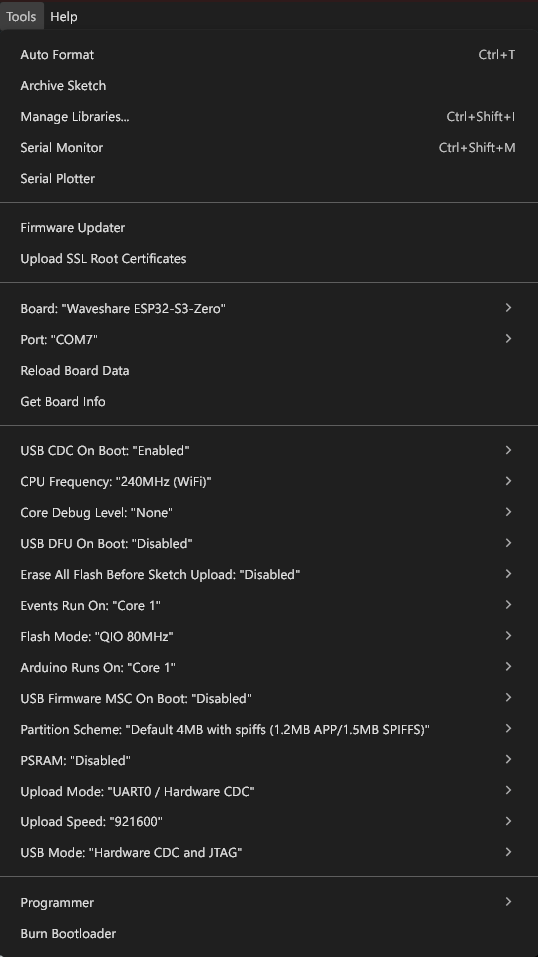
Let us explain those options to you.
- Board
- Choose a board from the list.
- Port
- The active port you need to communicate with the board. In Windows systems, it is a COM port.
- USB CDC On Boot
- Enables or disables the native USB interface of the ESP32-S3.
- CPU Frequency
- The CPU frequency you want to use.
- The larger the frequency, the higher the throughput. It also increases the power consumption.
- Not all frequencies can support Wi-Fi and Bluetooth functions.
- 80~240 MHz for Wi-Fi.
- 10~40 MHz for non Wi-Fi.
- The crystal frequency has to be 40 MHz or 26 MHz.
- Core Debug Level
- Selects how much debugging information has to be printed when running.
- Setting to Verbose will print all possible debug information.
- USB DFU On Boot
- Enters the DFU (Device Firmware Update) mode when enabled through the native USB interface.
- Can only be enabled when the USB mode is OTG.
- Erase All Flash Before Sketch Upload
- Whether to erase the entire flash chip before uploading the code.
- Erasing is writing the flash chip with
0xFF. Since flash chips have a limited (still large) number of write cycles available, we only need to erase portions we want to write to.
- Events Run On
- Selects where the Wi-Fi-related events (callbacks) run.
- Flash Mode
- Determines which type of SPI interface to be used with the flash chip.
- Can be QIO, DIO, QOUT, and DOUT.
- QIO at 80 MHz is the fastest.
- Select depending on the type of flash chip you are using.
- Flash Size
- Selects the flash size.
- Maximum is 16 MB.
- Arduino Runs On
- Selects which CPU core you want to use for the Arduino program. Core 1 is the default. Core 0 is used for RF-related functions.
- USB Firmware MSC On Boot
- USB Mass Storage Class.
- Can be enabled only when the USB is in OTG mode.
- Partition Scheme
- The type of partitioning you want to use.
- PSRAM
- Whether to enable PSRAM or not.
- Upload Mode
- Choose between UART mode and USB-OTG mode.
- Upload Speed
- Selects the upload speed in bits.
- Lower the upload speed if you are encountering uploading issues.
- USB Mode
- Select between CDC/JTAG or USB-OTG.
- In Hardware CDC/JTAG mode, the ESP32-S3 will create a serial port and a JTAG interface.
Connecting the Board
You can use a USB-C cable to connect the board to your computer. Multiple COM ports will be opened in your computer. The COM port is a serial communication port where you can send or receive binary data. The COM port number is automatically assigned by the operating system and is not permanent for your board. The OS can reassign the COM port to another device if needed. The OS assigns the COM port number based on the availability. So it is important to check the COM port associated with your device every time you plug it on the computer.
You can open the device manager of your system to see the COM port. In Windows, the COM ports will be listed under Ports (COM & LPT). Additionally, you can see all related ports and interfaces from a single device connection, you can group the view by containers by selecting View → Devices by container option.
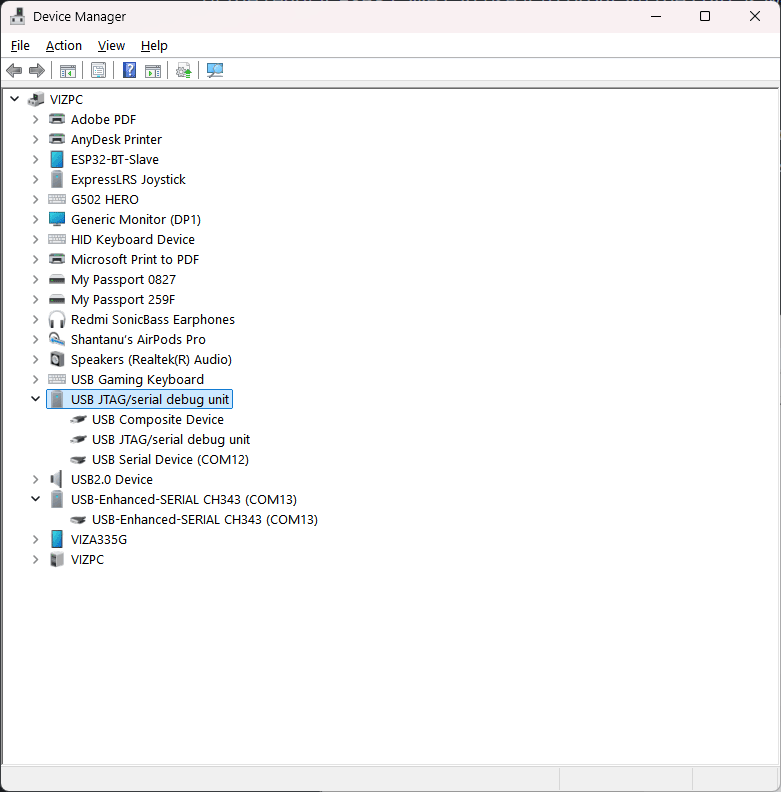
Since ESP32-S3-Zero uses the native USB interface, it can create up to 3 instances of USB devices on this list.
- USB JTAG/serial debug unit
- USB Composite Device
- USB JTAG/serial debug unit
- USB Serial Device (COM12)
The ESP32-S3 comes with a JTAG over USB debugging unit which you can use to debug the code without any external debuggers such as the ESP-Prog. This will only function if you connect the ESP32-S3 to the PC through the native interface. You will also get an additional USB serial port for printing serial data. This port can also be used for uploading the firmware on to the chip. The interface supports the well-known RTS and DTR signals for reset and bootloader mode control.
When you connect your board to the computer, and open the serial monitor through the board’s COM port, in this case COM12, you will see a strange message on the serial monitor every time the board is reset. The message looks like something below.
ESP-ROM:esp32s3-20210327
Build:Mar 27 2021
rst:0x15 (USB_UART_CHIP_RESET),boot:0x8 (SPI_FAST_FLASH_BOOT)
Saved PC:0x40378a06
SPIWP:0xee
mode:DIO, clock div:1
load:0x3fce2820,len:0x10cc
load:0x403c8700,len:0xc2c
load:0x403cb700,len:0x30c0
entry 0x403c88b8This diagnostic startup message is printed by the ESP32-S3’s bootloader program through the USB-Serial port at a baudrate of 115200 bps. The message contains some important working parameters related to flash memory, CPU clock, and startup reason among other things. This message is printed even before your actual code starts and baudrate doesn’t depend on the baudrate you are going to use for your board. For example, if you are going to print some messages at 9600 bps through the serial port, the boot message will still be printed at 115200 bps and you will see some garbage data on the serial monitor before your actual messages.
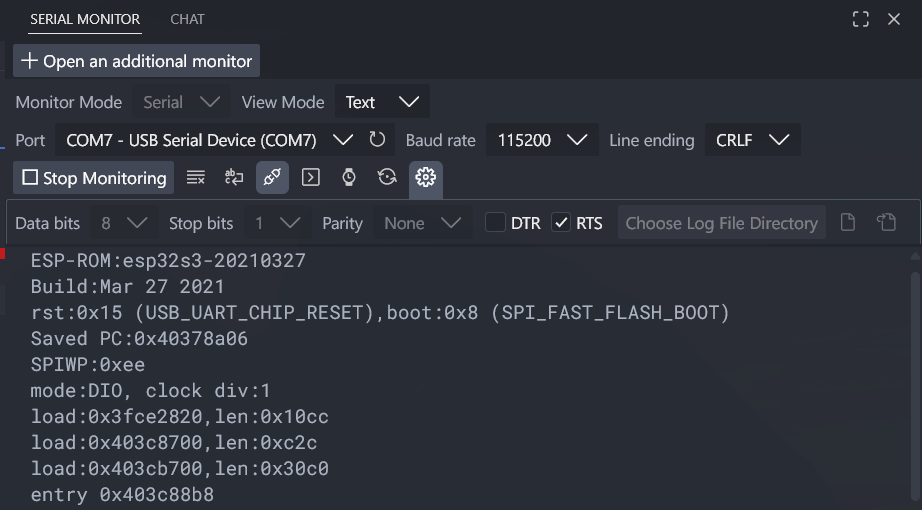
You can disable the ESP32-S3 serial boot message by pulling the GPIO46 pin HIGH during startup or reset.
Compiling & Uploading
Below is a simple blink sketch to blink the onboard RGB LED of ESP32-S3-Zero. The LED is connected to GPIO21. Since this an RGB LED we have to do more than simply switching the GPIO pin. For this, we need the Adafruit NeoPixel library to control serial RGB LEDs. You can find and install this library from the Arduino IDE’s Library Manager. After installing the library, create a new sketch with the following code.
//============================================================================================//
/*
  Filename: main.cpp [ESP32-S3-Zero-Demo -> Blink]
  Description: Blinks the onboard RGB LED on the ESP32-S3-Zero.
  Framework: Arduino
  Author: Vishnu Mohanan (@vishnumaiea, @vizmohanan)
  Maintainer: CIRCUITSTATE Electronics (@circuitstate)
  Version: 0.1
  License: MIT
  Source: https://github.com/CIRCUITSTATE/ESP32-S3-Zero-Demo
  Last Modified: +05:30 23:55:50 PM 28-10-2025, Tuesday
 */
//============================================================================================//

#include <Arduino.h>
#include <Adafruit_NeoPixel.h>

//============================================================================================//

#define PIN_LED_RGB   21 // RGB LED is connected to the GPIO 21

// #define PORT_SERIAL USBSerial // Use USB for communication
#define PORT_SERIAL Serial // Use USB for communication
// #define PORT_SERIAL Serial0 // Use USB for communication
// #define PORT_SERIAL Serial1 // Use UART0 for communication

//============================================================================================//

Adafruit_NeoPixel led (1, PIN_LED_RGB, NEO_GRB + NEO_KHZ800);

//============================================================================================//
/**
 * @brief Setup runs once.
 *
 */
void setup() {
  // put your setup code here, to run once:
  PORT_SERIAL.begin (115200);
  delay (500);

  PORT_SERIAL.println ("Blink with ESP32-S3-Zero");
  led.begin();
}

//============================================================================================//
/**
 * @brief Infinite loop.
 *
 */
void loop() {
  led.clear();

  // Cycle through the three colors.
  led.setPixelColor (0, led.Color (150, 0, 0));
  led.show();
  PORT_SERIAL.println ("RED");
  delay (500);

  led.setPixelColor (0, led.Color (0, 150, 0));
  led.show();
  PORT_SERIAL.println ("GREEN");
  delay (500);

  led.setPixelColor (0, led.Color (0, 0, 150));
  led.show();
  PORT_SERIAL.println ("BLUE");
  delay (500);
}

//============================================================================================//
Before uploading, you have to select the board from the Tools → Board → esp32 → Waveshare ESP32-S3-Zero and the COM (serial) port the board is connected to. Clicking the Upload button will compile and upload the code to the ESP32-S3 board. A compilation log will be printed to the console window. If your program has any errors, the compilation and uploading process will stop and the error will be shown in the console log. For example, the compilation log from our IDE is given below.
FQBN: esp32:esp32:waveshare_esp32_s3_zero
Using board 'waveshare_esp32_s3_zero' from platform in folder: C:\Users\vishn\AppData\Local\Arduino15\packages\esp32\hardware\esp32\3.3.7
Using core 'esp32' from platform in folder: C:\Users\vishn\AppData\Local\Arduino15\packages\esp32\hardware\esp32\3.3.7

cmd /c if exist "D:\\Code\\Arduino\\ESP32\\ESP32-S3-Zero\\Blink\\partitions.csv" COPY /y "D:\\Code\\Arduino\\ESP32\\ESP32-S3-Zero\\Blink\\partitions.csv" "C:\\Users\\vishn\\AppData\\Local\\arduino\\sketches\\61E6E31788AFD0D7D34B37CA4A6962AB\\partitions.csv"
cmd /c if not exist "C:\\Users\\vishn\\AppData\\Local\\arduino\\sketches\\61E6E31788AFD0D7D34B37CA4A6962AB\\partitions.csv" if exist "C:\\Users\\vishn\\AppData\\Local\\Arduino15\\packages\\esp32\\hardware\\esp32\\3.3.7\\variants\\waveshare_esp32_s3_zero\\partitions.csv" COPY "C:\\Users\\vishn\\AppData\\Local\\Arduino15\\packages\\esp32\\hardware\\esp32\\3.3.7\\variants\\waveshare_esp32_s3_zero\\partitions.csv" "C:\\Users\\vishn\\AppData\\Local\\arduino\\sketches\\61E6E31788AFD0D7D34B37CA4A6962AB\\partitions.csv"
cmd /c if not exist "C:\\Users\\vishn\\AppData\\Local\\arduino\\sketches\\61E6E31788AFD0D7D34B37CA4A6962AB\\partitions.csv" COPY "C:\\Users\\vishn\\AppData\\Local\\Arduino15\\packages\\esp32\\hardware\\esp32\\3.3.7\\tools\\partitions\\default.csv" "C:\\Users\\vishn\\AppData\\Local\\arduino\\sketches\\61E6E31788AFD0D7D34B37CA4A6962AB\\partitions.csv"
cmd /c IF EXIST "D:\\Code\\Arduino\\ESP32\\ESP32-S3-Zero\\Blink\\bootloader.bin" ( COPY /y "D:\\Code\\Arduino\\ESP32\\ESP32-S3-Zero\\Blink\\bootloader.bin" "C:\\Users\\vishn\\AppData\\Local\\arduino\\sketches\\61E6E31788AFD0D7D34B37CA4A6962AB\\Blink.ino.bootloader.bin" ) ELSE ( IF EXIST "C:\\Users\\vishn\\AppData\\Local\\Arduino15\\packages\\esp32\\hardware\\esp32\\3.3.7\\variants\\waveshare_esp32_s3_zero\\bootloader.bin" ( COPY "C:\\Users\\vishn\\AppData\\Local\\Arduino15\\packages\\esp32\\hardware\\esp32\\3.3.7\\variants\\waveshare_esp32_s3_zero\\bootloader.bin" "C:\\Users\\vishn\\AppData\\Local\\arduino\\sketches\\61E6E31788AFD0D7D34B37CA4A6962AB\\Blink.ino.bootloader.bin" ) ELSE ( "C:\\Users\\vishn\\AppData\\Local\\Arduino15\\packages\\esp32\\tools\\esptool_py\\5.1.0\\esptool.exe" --chip esp32s3 elf2image --flash-mode dio --flash-freq 80m --flash-size 4MB -o "C:\\Users\\vishn\\AppData\\Local\\arduino\\sketches\\61E6E31788AFD0D7D34B37CA4A6962AB\\Blink.ino.bootloader.bin" "C:\\Users\\vishn\\AppData\\Local\\Arduino15\\packages\\esp32\\tools\\esp32s3-libs\\3.3.7\\bin\\bootloader_qio_80m.elf" ) )
esptool v5.1.0
Creating ESP32S3 image...
Merged 2 ELF sections.
Successfully created ESP32S3 image.
cmd /c if exist "D:\\Code\\Arduino\\ESP32\\ESP32-S3-Zero\\Blink\\build_opt.h" COPY /y "D:\\Code\\Arduino\\ESP32\\ESP32-S3-Zero\\Blink\\build_opt.h" "C:\\Users\\vishn\\AppData\\Local\\arduino\\sketches\\61E6E31788AFD0D7D34B37CA4A6962AB\\build_opt.h"
cmd /c if not exist "C:\\Users\\vishn\\AppData\\Local\\arduino\\sketches\\61E6E31788AFD0D7D34B37CA4A6962AB\\build_opt.h" type nul > "C:\\Users\\vishn\\AppData\\Local\\arduino\\sketches\\61E6E31788AFD0D7D34B37CA4A6962AB\\build_opt.h"
cmd /c type nul > "C:\\Users\\vishn\\AppData\\Local\\arduino\\sketches\\61E6E31788AFD0D7D34B37CA4A6962AB/file_opts"
cmd /c COPY /y "C:\\Users\\vishn\\AppData\\Local\\Arduino15\\packages\\esp32\\tools\\esp32s3-libs\\3.3.7\\sdkconfig" "C:\\Users\\vishn\\AppData\\Local\\arduino\\sketches\\61E6E31788AFD0D7D34B37CA4A6962AB\\sdkconfig"
        1 file(s) copied.
Detecting libraries used...
C:\Users\vishn\AppData\Local\Arduino15\packages\esp32\tools\esp-x32\2511/bin/xtensa-esp32s3-elf-g++ -c @C:\Users\vishn\AppData\Local\Arduino15\packages\esp32\tools\esp32s3-libs\3.3.7/flags/cpp_flags -w -Os -Werror=return-type -w -x c++ -E -CC -DF_CPU=240000000L -DARDUINO=10607 -DARDUINO_WAVESHARE_ESP32_S3_ZERO -DARDUINO_ARCH_ESP32 -DARDUINO_BOARD="WAVESHARE_ESP32_S3_ZERO" -DARDUINO_VARIANT="waveshare_esp32_s3_zero" -DARDUINO_PARTITION_default -DARDUINO_HOST_OS="windows" -DARDUINO_FQBN="esp32:esp32:waveshare_esp32_s3_zero:UploadSpeed=921600,USBMode=hwcdc,CDCOnBoot=default,MSCOnBoot=default,DFUOnBoot=default,UploadMode=default,CPUFreq=240,FlashMode=qio,PartitionScheme=default,DebugLevel=none,PSRAM=disabled,LoopCore=1,EventsCore=1,EraseFlash=none" -DESP32=ESP32 -DCORE_DEBUG_LEVEL=0 -DARDUINO_RUNNING_CORE=1 -DARDUINO_EVENT_RUNNING_CORE=1 -DARDUINO_USB_MODE=1 -DARDUINO_USB_CDC_ON_BOOT=1 -DARDUINO_USB_MSC_ON_BOOT=0 -DARDUINO_USB_DFU_ON_BOOT=0 @C:\Users\vishn\AppData\Local\Arduino15\packages\esp32\tools\esp32s3-libs\3.3.7/flags/defines -ID:\Code\Arduino\ESP32\ESP32-S3-Zero\Blink -iprefix C:\Users\vishn\AppData\Local\Arduino15\packages\esp32\tools\esp32s3-libs\3.3.7/include/ @C:\Users\vishn\AppData\Local\Arduino15\packages\esp32\tools\esp32s3-libs\3.3.7/flags/includes -IC:\Users\vishn\AppData\Local\Arduino15\packages\esp32\tools\esp32s3-libs\3.3.7/qio_qspi/include -IC:\Users\vishn\AppData\Local\Arduino15\packages\esp32\hardware\esp32\3.3.7\cores\esp32 -IC:\Users\vishn\AppData\Local\Arduino15\packages\esp32\hardware\esp32\3.3.7\variants\waveshare_esp32_s3_zero @C:\Users\vishn\AppData\Local\arduino\sketches\61E6E31788AFD0D7D34B37CA4A6962AB/build_opt.h @C:\Users\vishn\AppData\Local\arduino\sketches\61E6E31788AFD0D7D34B37CA4A6962AB/file_opts C:\Users\vishn\AppData\Local\arduino\sketches\61E6E31788AFD0D7D34B37CA4A6962AB\sketch\Blink.ino.cpp -o nul
Alternatives for Adafruit_NeoPixel.h: [Adafruit NeoPixel@1.15.4]
ResolveLibrary(Adafruit_NeoPixel.h)
  -> candidates: [Adafruit NeoPixel@1.15.4]
C:\Users\vishn\AppData\Local\Arduino15\packages\esp32\tools\esp-x32\2511/bin/xtensa-esp32s3-elf-g++ -c @C:\Users\vishn\AppData\Local\Arduino15\packages\esp32\tools\esp32s3-libs\3.3.7/flags/cpp_flags -w -Os -Werror=return-type -w -x c++ -E -CC -DF_CPU=240000000L -DARDUINO=10607 -DARDUINO_WAVESHARE_ESP32_S3_ZERO -DARDUINO_ARCH_ESP32 -DARDUINO_BOARD="WAVESHARE_ESP32_S3_ZERO" -DARDUINO_VARIANT="waveshare_esp32_s3_zero" -DARDUINO_PARTITION_default -DARDUINO_HOST_OS="windows" -DARDUINO_FQBN="esp32:esp32:waveshare_esp32_s3_zero:UploadSpeed=921600,USBMode=hwcdc,CDCOnBoot=default,MSCOnBoot=default,DFUOnBoot=default,UploadMode=default,CPUFreq=240,FlashMode=qio,PartitionScheme=default,DebugLevel=none,PSRAM=disabled,LoopCore=1,EventsCore=1,EraseFlash=none" -DESP32=ESP32 -DCORE_DEBUG_LEVEL=0 -DARDUINO_RUNNING_CORE=1 -DARDUINO_EVENT_RUNNING_CORE=1 -DARDUINO_USB_MODE=1 -DARDUINO_USB_CDC_ON_BOOT=1 -DARDUINO_USB_MSC_ON_BOOT=0 -DARDUINO_USB_DFU_ON_BOOT=0 @C:\Users\vishn\AppData\Local\Arduino15\packages\esp32\tools\esp32s3-libs\3.3.7/flags/defines -ID:\Code\Arduino\ESP32\ESP32-S3-Zero\Blink -iprefix C:\Users\vishn\AppData\Local\Arduino15\packages\esp32\tools\esp32s3-libs\3.3.7/include/ @C:\Users\vishn\AppData\Local\Arduino15\packages\esp32\tools\esp32s3-libs\3.3.7/flags/includes -IC:\Users\vishn\AppData\Local\Arduino15\packages\esp32\tools\esp32s3-libs\3.3.7/qio_qspi/include -IC:\Users\vishn\AppData\Local\Arduino15\packages\esp32\hardware\esp32\3.3.7\cores\esp32 -IC:\Users\vishn\AppData\Local\Arduino15\packages\esp32\hardware\esp32\3.3.7\variants\waveshare_esp32_s3_zero -Id:\Code\Arduino\Sketches\libraries\Adafruit_NeoPixel @C:\Users\vishn\AppData\Local\arduino\sketches\61E6E31788AFD0D7D34B37CA4A6962AB/build_opt.h @C:\Users\vishn\AppData\Local\arduino\sketches\61E6E31788AFD0D7D34B37CA4A6962AB/file_opts C:\Users\vishn\AppData\Local\arduino\sketches\61E6E31788AFD0D7D34B37CA4A6962AB\sketch\Blink.ino.cpp -o nul
Using cached library dependencies for file: d:\Code\Arduino\Sketches\libraries\Adafruit_NeoPixel\Adafruit_NeoPixel.cpp
Using cached library dependencies for file: d:\Code\Arduino\Sketches\libraries\Adafruit_NeoPixel\Adafruit_Neopixel_RP2.cpp
Using cached library dependencies for file: d:\Code\Arduino\Sketches\libraries\Adafruit_NeoPixel\esp.c
Using cached library dependencies for file: d:\Code\Arduino\Sketches\libraries\Adafruit_NeoPixel\esp8266.c
Using cached library dependencies for file: d:\Code\Arduino\Sketches\libraries\Adafruit_NeoPixel\kendyte_k210.c
Using cached library dependencies for file: d:\Code\Arduino\Sketches\libraries\Adafruit_NeoPixel\psoc6.c
Generating function prototypes...
C:\Users\vishn\AppData\Local\Arduino15\packages\esp32\tools\esp-x32\2511/bin/xtensa-esp32s3-elf-g++ -c @C:\Users\vishn\AppData\Local\Arduino15\packages\esp32\tools\esp32s3-libs\3.3.7/flags/cpp_flags -w -Os -Werror=return-type -w -x c++ -E -CC -DF_CPU=240000000L -DARDUINO=10607 -DARDUINO_WAVESHARE_ESP32_S3_ZERO -DARDUINO_ARCH_ESP32 -DARDUINO_BOARD="WAVESHARE_ESP32_S3_ZERO" -DARDUINO_VARIANT="waveshare_esp32_s3_zero" -DARDUINO_PARTITION_default -DARDUINO_HOST_OS="windows" -DARDUINO_FQBN="esp32:esp32:waveshare_esp32_s3_zero:UploadSpeed=921600,USBMode=hwcdc,CDCOnBoot=default,MSCOnBoot=default,DFUOnBoot=default,UploadMode=default,CPUFreq=240,FlashMode=qio,PartitionScheme=default,DebugLevel=none,PSRAM=disabled,LoopCore=1,EventsCore=1,EraseFlash=none" -DESP32=ESP32 -DCORE_DEBUG_LEVEL=0 -DARDUINO_RUNNING_CORE=1 -DARDUINO_EVENT_RUNNING_CORE=1 -DARDUINO_USB_MODE=1 -DARDUINO_USB_CDC_ON_BOOT=1 -DARDUINO_USB_MSC_ON_BOOT=0 -DARDUINO_USB_DFU_ON_BOOT=0 @C:\Users\vishn\AppData\Local\Arduino15\packages\esp32\tools\esp32s3-libs\3.3.7/flags/defines -ID:\Code\Arduino\ESP32\ESP32-S3-Zero\Blink -iprefix C:\Users\vishn\AppData\Local\Arduino15\packages\esp32\tools\esp32s3-libs\3.3.7/include/ @C:\Users\vishn\AppData\Local\Arduino15\packages\esp32\tools\esp32s3-libs\3.3.7/flags/includes -IC:\Users\vishn\AppData\Local\Arduino15\packages\esp32\tools\esp32s3-libs\3.3.7/qio_qspi/include -IC:\Users\vishn\AppData\Local\Arduino15\packages\esp32\hardware\esp32\3.3.7\cores\esp32 -IC:\Users\vishn\AppData\Local\Arduino15\packages\esp32\hardware\esp32\3.3.7\variants\waveshare_esp32_s3_zero -Id:\Code\Arduino\Sketches\libraries\Adafruit_NeoPixel @C:\Users\vishn\AppData\Local\arduino\sketches\61E6E31788AFD0D7D34B37CA4A6962AB/build_opt.h @C:\Users\vishn\AppData\Local\arduino\sketches\61E6E31788AFD0D7D34B37CA4A6962AB/file_opts C:\Users\vishn\AppData\Local\arduino\sketches\61E6E31788AFD0D7D34B37CA4A6962AB\sketch\Blink.ino.cpp -o C:\Users\vishn\AppData\Local\Temp\788715547\sketch_merged.cpp
C:\Users\vishn\AppData\Local\Arduino15\packages\builtin\tools\ctags\5.8-arduino11/ctags -u --language-force=c++ -f - --c++-kinds=svpf --fields=KSTtzns --line-directives C:\Users\vishn\AppData\Local\Temp\788715547\sketch_merged.cpp

Compiling sketch...
"C:\\Users\\vishn\\AppData\\Local\\Arduino15\\packages\\esp32\\tools\\esp-x32\\2511/bin/xtensa-esp32s3-elf-g++" -MMD -c "@C:\\Users\\vishn\\AppData\\Local\\Arduino15\\packages\\esp32\\tools\\esp32s3-libs\\3.3.7/flags/cpp_flags" -Os -Werror=return-type -DF_CPU=240000000L -DARDUINO=10607 -DARDUINO_WAVESHARE_ESP32_S3_ZERO -DARDUINO_ARCH_ESP32 "-DARDUINO_BOARD=\"WAVESHARE_ESP32_S3_ZERO\"" "-DARDUINO_VARIANT=\"waveshare_esp32_s3_zero\"" -DARDUINO_PARTITION_default "-DARDUINO_HOST_OS=\"windows\"" "-DARDUINO_FQBN=\"esp32:esp32:waveshare_esp32_s3_zero:UploadSpeed=921600,USBMode=hwcdc,CDCOnBoot=default,MSCOnBoot=default,DFUOnBoot=default,UploadMode=default,CPUFreq=240,FlashMode=qio,PartitionScheme=default,DebugLevel=none,PSRAM=disabled,LoopCore=1,EventsCore=1,EraseFlash=none\"" -DESP32=ESP32 -DCORE_DEBUG_LEVEL=0 -DARDUINO_RUNNING_CORE=1 -DARDUINO_EVENT_RUNNING_CORE=1 -DARDUINO_USB_MODE=1 -DARDUINO_USB_CDC_ON_BOOT=1 -DARDUINO_USB_MSC_ON_BOOT=0 -DARDUINO_USB_DFU_ON_BOOT=0 "@C:\\Users\\vishn\\AppData\\Local\\Arduino15\\packages\\esp32\\tools\\esp32s3-libs\\3.3.7/flags/defines" "-ID:\\Code\\Arduino\\ESP32\\ESP32-S3-Zero\\Blink" -iprefix "C:\\Users\\vishn\\AppData\\Local\\Arduino15\\packages\\esp32\\tools\\esp32s3-libs\\3.3.7/include/" "@C:\\Users\\vishn\\AppData\\Local\\Arduino15\\packages\\esp32\\tools\\esp32s3-libs\\3.3.7/flags/includes" "-IC:\\Users\\vishn\\AppData\\Local\\Arduino15\\packages\\esp32\\tools\\esp32s3-libs\\3.3.7/qio_qspi/include" "-IC:\\Users\\vishn\\AppData\\Local\\Arduino15\\packages\\esp32\\hardware\\esp32\\3.3.7\\cores\\esp32" "-IC:\\Users\\vishn\\AppData\\Local\\Arduino15\\packages\\esp32\\hardware\\esp32\\3.3.7\\variants\\waveshare_esp32_s3_zero" "-Id:\\Code\\Arduino\\Sketches\\libraries\\Adafruit_NeoPixel" "@C:\\Users\\vishn\\AppData\\Local\\arduino\\sketches\\61E6E31788AFD0D7D34B37CA4A6962AB/build_opt.h" "@C:\\Users\\vishn\\AppData\\Local\\arduino\\sketches\\61E6E31788AFD0D7D34B37CA4A6962AB/file_opts" "C:\\Users\\vishn\\AppData\\Local\\arduino\\sketches\\61E6E31788AFD0D7D34B37CA4A6962AB\\sketch\\Blink.ino.cpp" -o "C:\\Users\\vishn\\AppData\\Local\\arduino\\sketches\\61E6E31788AFD0D7D34B37CA4A6962AB\\sketch\\Blink.ino.cpp.o"
Compiling libraries...
Compiling library "Adafruit NeoPixel"
Using previously compiled file: C:\Users\vishn\AppData\Local\arduino\sketches\61E6E31788AFD0D7D34B37CA4A6962AB\libraries\Adafruit_NeoPixel\Adafruit_Neopixel_RP2.cpp.o
Using previously compiled file: C:\Users\vishn\AppData\Local\arduino\sketches\61E6E31788AFD0D7D34B37CA4A6962AB\libraries\Adafruit_NeoPixel\esp8266.c.o
Using previously compiled file: C:\Users\vishn\AppData\Local\arduino\sketches\61E6E31788AFD0D7D34B37CA4A6962AB\libraries\Adafruit_NeoPixel\psoc6.c.o
Using previously compiled file: C:\Users\vishn\AppData\Local\arduino\sketches\61E6E31788AFD0D7D34B37CA4A6962AB\libraries\Adafruit_NeoPixel\kendyte_k210.c.o
Using previously compiled file: C:\Users\vishn\AppData\Local\arduino\sketches\61E6E31788AFD0D7D34B37CA4A6962AB\libraries\Adafruit_NeoPixel\esp.c.o
Using previously compiled file: C:\Users\vishn\AppData\Local\arduino\sketches\61E6E31788AFD0D7D34B37CA4A6962AB\libraries\Adafruit_NeoPixel\Adafruit_NeoPixel.cpp.o
Compiling core...
cmd /c echo -DARDUINO_CORE_BUILD > "C:\\Users\\vishn\\AppData\\Local\\arduino\\sketches\\61E6E31788AFD0D7D34B37CA4A6962AB/file_opts"
Using precompiled core: C:\Users\vishn\AppData\Local\arduino\cores\d0fb34a91774af6f5289bfecd4870583\core.a
cmd /c type nul > "C:\\Users\\vishn\\AppData\\Local\\arduino\\sketches\\61E6E31788AFD0D7D34B37CA4A6962AB/file_opts"
Linking everything together...
"C:\\Users\\vishn\\AppData\\Local\\Arduino15\\packages\\esp32\\tools\\esp-x32\\2511/bin/xtensa-esp32s3-elf-g++" "-Wl,--Map=C:\\Users\\vishn\\AppData\\Local\\arduino\\sketches\\61E6E31788AFD0D7D34B37CA4A6962AB/Blink.ino.map" "-LC:\\Users\\vishn\\AppData\\Local\\Arduino15\\packages\\esp32\\tools\\esp32s3-libs\\3.3.7/lib" "-LC:\\Users\\vishn\\AppData\\Local\\Arduino15\\packages\\esp32\\tools\\esp32s3-libs\\3.3.7/ld" "-LC:\\Users\\vishn\\AppData\\Local\\Arduino15\\packages\\esp32\\tools\\esp32s3-libs\\3.3.7/qio_qspi" -Wl,--wrap=esp_panic_handler "@C:\\Users\\vishn\\AppData\\Local\\Arduino15\\packages\\esp32\\tools\\esp32s3-libs\\3.3.7/flags/ld_flags" "@C:\\Users\\vishn\\AppData\\Local\\Arduino15\\packages\\esp32\\tools\\esp32s3-libs\\3.3.7/flags/ld_scripts" -Wl,--start-group "C:\\Users\\vishn\\AppData\\Local\\arduino\\sketches\\61E6E31788AFD0D7D34B37CA4A6962AB\\sketch\\Blink.ino.cpp.o" "C:\\Users\\vishn\\AppData\\Local\\arduino\\sketches\\61E6E31788AFD0D7D34B37CA4A6962AB\\libraries\\Adafruit_NeoPixel\\Adafruit_NeoPixel.cpp.o" "C:\\Users\\vishn\\AppData\\Local\\arduino\\sketches\\61E6E31788AFD0D7D34B37CA4A6962AB\\libraries\\Adafruit_NeoPixel\\Adafruit_Neopixel_RP2.cpp.o" "C:\\Users\\vishn\\AppData\\Local\\arduino\\sketches\\61E6E31788AFD0D7D34B37CA4A6962AB\\libraries\\Adafruit_NeoPixel\\esp.c.o" "C:\\Users\\vishn\\AppData\\Local\\arduino\\sketches\\61E6E31788AFD0D7D34B37CA4A6962AB\\libraries\\Adafruit_NeoPixel\\esp8266.c.o" "C:\\Users\\vishn\\AppData\\Local\\arduino\\sketches\\61E6E31788AFD0D7D34B37CA4A6962AB\\libraries\\Adafruit_NeoPixel\\kendyte_k210.c.o" "C:\\Users\\vishn\\AppData\\Local\\arduino\\sketches\\61E6E31788AFD0D7D34B37CA4A6962AB\\libraries\\Adafruit_NeoPixel\\psoc6.c.o" "C:\\Users\\vishn\\AppData\\Local\\arduino\\cores\\d0fb34a91774af6f5289bfecd4870583\\core.a" "@C:\\Users\\vishn\\AppData\\Local\\Arduino15\\packages\\esp32\\tools\\esp32s3-libs\\3.3.7/flags/ld_libs" -Wl,--end-group -Wl,-EL -o "C:\\Users\\vishn\\AppData\\Local\\arduino\\sketches\\61E6E31788AFD0D7D34B37CA4A6962AB/Blink.ino.elf"
"C:\\Users\\vishn\\AppData\\Local\\Arduino15\\packages\\esp32\\tools\\esptool_py\\5.1.0/esptool.exe" --chip esp32s3 elf2image --flash-mode dio --flash-freq 80m --flash-size 4MB --elf-sha256-offset 0xb0 -o "C:\\Users\\vishn\\AppData\\Local\\arduino\\sketches\\61E6E31788AFD0D7D34B37CA4A6962AB/Blink.ino.bin" "C:\\Users\\vishn\\AppData\\Local\\arduino\\sketches\\61E6E31788AFD0D7D34B37CA4A6962AB/Blink.ino.elf"
esptool v5.1.0
Creating ESP32S3 image...
Merged 2 ELF sections.
Successfully created ESP32S3 image.
"C:\\Users\\vishn\\AppData\\Local\\Arduino15\\packages\\esp32\\hardware\\esp32\\3.3.7\\tools\\gen_esp32part.exe" -q "C:\\Users\\vishn\\AppData\\Local\\arduino\\sketches\\61E6E31788AFD0D7D34B37CA4A6962AB/partitions.csv" "C:\\Users\\vishn\\AppData\\Local\\arduino\\sketches\\61E6E31788AFD0D7D34B37CA4A6962AB/Blink.ino.partitions.bin"
cmd /c if exist "C:\\Users\\vishn\\AppData\\Local\\arduino\\sketches\\61E6E31788AFD0D7D34B37CA4A6962AB\\libraries\\Insights" "C:\\Users\\vishn\\AppData\\Local\\Arduino15\\packages\\esp32\\hardware\\esp32\\3.3.7\\tools\\gen_insights_package.exe" "C:\\Users\\vishn\\AppData\\Local\\arduino\\sketches\\61E6E31788AFD0D7D34B37CA4A6962AB" Blink.ino "D:\\Code\\Arduino\\ESP32\\ESP32-S3-Zero\\Blink"
cmd /c if exist "C:\\Users\\vishn\\AppData\\Local\\arduino\\sketches\\61E6E31788AFD0D7D34B37CA4A6962AB\\libraries\\ESP_SR" if exist "C:\\Users\\vishn\\AppData\\Local\\Arduino15\\packages\\esp32\\tools\\esp32s3-libs\\3.3.7\\esp_sr\\srmodels.bin" COPY /y "C:\\Users\\vishn\\AppData\\Local\\Arduino15\\packages\\esp32\\tools\\esp32s3-libs\\3.3.7\\esp_sr\\srmodels.bin" "C:\\Users\\vishn\\AppData\\Local\\arduino\\sketches\\61E6E31788AFD0D7D34B37CA4A6962AB\\srmodels.bin"
"C:\\Users\\vishn\\AppData\\Local\\Arduino15\\packages\\esp32\\tools\\esptool_py\\5.1.0/esptool.exe" --chip esp32s3 merge-bin -o "C:\\Users\\vishn\\AppData\\Local\\arduino\\sketches\\61E6E31788AFD0D7D34B37CA4A6962AB/Blink.ino.merged.bin" --pad-to-size 4MB --flash-mode keep --flash-freq keep --flash-size keep 0x0 "C:\\Users\\vishn\\AppData\\Local\\arduino\\sketches\\61E6E31788AFD0D7D34B37CA4A6962AB/Blink.ino.bootloader.bin" 0x8000 "C:\\Users\\vishn\\AppData\\Local\\arduino\\sketches\\61E6E31788AFD0D7D34B37CA4A6962AB/Blink.ino.partitions.bin" 0xe000 "C:\\Users\\vishn\\AppData\\Local\\Arduino15\\packages\\esp32\\hardware\\esp32\\3.3.7/tools/partitions/boot_app0.bin" 0x10000 "C:\\Users\\vishn\\AppData\\Local\\arduino\\sketches\\61E6E31788AFD0D7D34B37CA4A6962AB/Blink.ino.bin"
esptool v5.1.0
Wrote 0x400000 bytes to file 'C:\Users\vishn\AppData\Local\arduino\sketches\61E6E31788AFD0D7D34B37CA4A6962AB/Blink.ino.merged.bin', ready to flash to offset 0x0.
cmd /c echo --flash-mode dio --flash-freq 80m --flash-size 4MB > "C:\\Users\\vishn\\AppData\\Local\\arduino\\sketches\\61E6E31788AFD0D7D34B37CA4A6962AB\\flash_args" && echo 0x0 Blink.ino.bootloader.bin >> "C:\\Users\\vishn\\AppData\\Local\\arduino\\sketches\\61E6E31788AFD0D7D34B37CA4A6962AB\\flash_args" && echo 0x8000 Blink.ino.partitions.bin >> "C:\\Users\\vishn\\AppData\\Local\\arduino\\sketches\\61E6E31788AFD0D7D34B37CA4A6962AB\\flash_args" && echo 0xe000 boot_app0.bin >> "C:\\Users\\vishn\\AppData\\Local\\arduino\\sketches\\61E6E31788AFD0D7D34B37CA4A6962AB\\flash_args" && echo 0x10000 Blink.ino.bin >> "C:\\Users\\vishn\\AppData\\Local\\arduino\\sketches\\61E6E31788AFD0D7D34B37CA4A6962AB\\flash_args"
Using library Adafruit NeoPixel at version 1.15.4 in folder: D:\Code\Arduino\Sketches\libraries\Adafruit_NeoPixel
"C:\\Users\\vishn\\AppData\\Local\\Arduino15\\packages\\esp32\\tools\\esp-x32\\2511/bin/xtensa-esp32s3-elf-size" -A "C:\\Users\\vishn\\AppData\\Local\\arduino\\sketches\\61E6E31788AFD0D7D34B37CA4A6962AB/Blink.ino.elf"
Sketch uses 310000 bytes (23%) of program storage space. Maximum is 1310720 bytes.
Global variables use 22120 bytes (6%) of dynamic memory, leaving 305560 bytes for local variables. Maximum is 327680 bytes.
esptool v5.1.0
Serial port COM7:
Connecting...
Connected to ESP32-S3 on COM7:
Chip type:          ESP32-S3 (QFN56) (revision v0.2)
Features:           Wi-Fi, BT 5 (LE), Dual Core + LP Core, 240MHz, Embedded Flash 4MB (XMC), Embedded PSRAM 2MB (AP_3v3)
Crystal frequency:  40MHz
USB mode:           USB-Serial/JTAG
MAC:                b8:f8:62:d7:64:d8

Uploading stub flasher...
Running stub flasher...
Stub flasher running.
Changing baud rate to 921600...
Changed.

Configuring flash size...
Flash will be erased from 0x00000000 to 0x00004fff...
Flash will be erased from 0x00008000 to 0x00008fff...
Flash will be erased from 0x0000e000 to 0x0000ffff...
Flash will be erased from 0x00010000 to 0x0005bfff...
Compressed 19984 bytes to 13031...

Writing at 0x00000000 [                              ]   0.0% 0/13031 bytes...

Writing at 0x00004e10 [==============================] 100.0% 13031/13031 bytes...
Wrote 19984 bytes (13031 compressed) at 0x00000000 in 0.3 seconds (522.6 kbit/s).
Hash of data verified.
Compressed 3072 bytes to 146...

Writing at 0x00008000 [                              ]   0.0% 0/146 bytes...

Writing at 0x00008c00 [==============================] 100.0% 146/146 bytes...
Wrote 3072 bytes (146 compressed) at 0x00008000 in 0.0 seconds (552.8 kbit/s).
Hash of data verified.
Compressed 8192 bytes to 47...

Writing at 0x0000e000 [                              ]   0.0% 0/47 bytes...

Writing at 0x00010000 [==============================] 100.0% 47/47 bytes...
Wrote 8192 bytes (47 compressed) at 0x0000e000 in 0.1 seconds (778.2 kbit/s).
Hash of data verified.
Compressed 310144 bytes to 169757...

Writing at 0x00010000 [                              ]   0.0% 0/169757 bytes...

Writing at 0x0001c00f [=>                            ]   9.7% 16384/169757 bytes...

Writing at 0x00028fc7 [====>                         ]  19.3% 32768/169757 bytes...

Writing at 0x0002e771 [=======>                      ]  29.0% 49152/169757 bytes...

Writing at 0x00034288 [==========>                   ]  38.6% 65536/169757 bytes...

Writing at 0x00039a8f [=============>                ]  48.3% 81920/169757 bytes...

Writing at 0x0003f168 [================>             ]  57.9% 98304/169757 bytes...

Writing at 0x00044c8f [===================>          ]  67.6% 114688/169757 bytes...

Writing at 0x0004d42d [======================>       ]  77.2% 131072/169757 bytes...

Writing at 0x00053597 [=========================>    ]  86.9% 147456/169757 bytes...

Writing at 0x00059607 [===========================>  ]  96.5% 163840/169757 bytes...

Writing at 0x0005bb80 [==============================] 100.0% 169757/169757 bytes...
Wrote 310144 bytes (169757 compressed) at 0x00010000 in 3.0 seconds (838.3 kbit/s).
Hash of data verified.

Hard resetting via RTS pin...As you can read from the log, the blink sketch is taking 23% or 310000 bytes of the flash memory with the maximum app partition being 1310720 bytes, or around 1 MB. The partition table used by the Arduino project looks like below.
# Name,   Type, SubType, Offset,  Size, Flags
nvs,      data, nvs,     0x9000,  0x5000,
otadata,  data, ota,     0xe000,  0x2000,
app0,     app,  ota_0,   0x10000, 0x140000,
app1,     app,  ota_1,   0x150000,0x140000,
spiffs,   data, spiffs,  0x290000,0x160000,
coredump, data, coredump,0x3F0000,0x10000,The blink sketch was saved to the app0 partition with a maximum size of 1310720 bytes (0x140000 in hex). You can also see there is an app1 partition with a subtype ota_1. This is reserved for OTA updates and a new version of your app can be saved here when you push it. The size of the OTA partition is also 1310720 bytes. But what if you don’t need the OTA partition and you have a large app? For that, you can add a custom partition table as file partitions.csv to your sketch folder. During compilation, the toolchain will find the file and use it for flash partition.
Analysing the compilation log, we can learn a few more things. One is the use of a stub. A flasher stub is a program loaded before your actual code is written. The stub is like the ROM bootloader but faster and more optimized. After the stub is loaded and running, the actual writing of the flash begins. You can see which address ranges each data is written to.
We know that an Arduino sketch is not a complete C/C++ source file. It is missing the main() function and many other basic constructs. So where is the main.cpp file? The Arduino IDE and consecutively the arduino-esp32 core converts your Arduino sketch to a proper C++ source file before compiling it. Your Arduino sketch then becomes an external .cpp file for that main project. For example, if your sketch name is Blink.ino, then the file becomes Blink.ino.cpp. Inside the arduino-esp32 package directory, there is a main.cpp file that acts as the backbone of your project. The content of the file is shown below.
#include "freertos/FreeRTOS.h"
#include "freertos/task.h"
#include "esp_task_wdt.h"
#include "soc/rtc.h"
#include "Arduino.h"
#if (ARDUINO_USB_CDC_ON_BOOT | ARDUINO_USB_MSC_ON_BOOT | ARDUINO_USB_DFU_ON_BOOT) && !ARDUINO_USB_MODE
#include "USB.h"
#if ARDUINO_USB_MSC_ON_BOOT
#include "FirmwareMSC.h"
#endif
#endif

#include "chip-debug-report.h"

#ifndef ARDUINO_LOOP_STACK_SIZE
#ifndef CONFIG_ARDUINO_LOOP_STACK_SIZE
#define ARDUINO_LOOP_STACK_SIZE 8192
#else
#define ARDUINO_LOOP_STACK_SIZE CONFIG_ARDUINO_LOOP_STACK_SIZE
#endif
#endif

TaskHandle_t loopTaskHandle = NULL;

#if CONFIG_AUTOSTART_ARDUINO
#if CONFIG_FREERTOS_UNICORE
void yieldIfNecessary(void) {
  static uint64_t lastYield = 0;
  uint64_t now = millis();
  if ((now - lastYield) > 2000) {
    lastYield = now;
    vTaskDelay(5);  //delay 1 RTOS tick
  }
}
#endif

bool loopTaskWDTEnabled;

__attribute__((weak)) size_t getArduinoLoopTaskStackSize(void) {
  return ARDUINO_LOOP_STACK_SIZE;
}

__attribute__((weak)) bool shouldPrintChipDebugReport(void) {
  return false;
}

void loopTask(void *pvParameters) {
#if !defined(NO_GLOBAL_INSTANCES) && !defined(NO_GLOBAL_SERIAL)
  // sets UART0 (default console) RX/TX pins as already configured in boot or as defined in variants/pins_arduino.h
  Serial0.setPins(gpioNumberToDigitalPin(SOC_RX0), gpioNumberToDigitalPin(SOC_TX0));
#endif
#if ARDUHAL_LOG_LEVEL >= ARDUHAL_LOG_LEVEL_DEBUG
  printBeforeSetupInfo();
#else
  if (shouldPrintChipDebugReport()) {
    printBeforeSetupInfo();
  }
#endif
  setup();
#if ARDUHAL_LOG_LEVEL >= ARDUHAL_LOG_LEVEL_DEBUG
  printAfterSetupInfo();
#else
  if (shouldPrintChipDebugReport()) {
    printAfterSetupInfo();
  }
#endif
  for (;;) {
#if CONFIG_FREERTOS_UNICORE
    yieldIfNecessary();
#endif
    if (loopTaskWDTEnabled) {
      esp_task_wdt_reset();
    }
    loop();
    if (serialEventRun) {
      serialEventRun();
    }
  }
}

extern "C" void app_main() {
#ifdef F_XTAL_MHZ
#if !CONFIG_IDF_TARGET_ESP32S2  // ESP32-S2 does not support rtc_clk_xtal_freq_update
  rtc_clk_xtal_freq_update((rtc_xtal_freq_t)F_XTAL_MHZ);
  rtc_clk_cpu_freq_set_xtal();
#endif
#endif
#ifdef F_CPU
  setCpuFrequencyMhz(F_CPU / 1000000);
#endif
#if ARDUINO_USB_CDC_ON_BOOT && !ARDUINO_USB_MODE
  Serial.begin();
#endif
#if ARDUINO_USB_MSC_ON_BOOT && !ARDUINO_USB_MODE
  MSC_Update.begin();
#endif
#if ARDUINO_USB_DFU_ON_BOOT && !ARDUINO_USB_MODE
  USB.enableDFU();
#endif
#if ARDUINO_USB_ON_BOOT && !ARDUINO_USB_MODE
  USB.begin();
#endif
  loopTaskWDTEnabled = false;
  initArduino();
  xTaskCreateUniversal(loopTask, "loopTask", getArduinoLoopTaskStackSize(), NULL, 1, &loopTaskHandle, ARDUINO_RUNNING_CORE);
}

#endifAs you can see setup() and loop() functions are invoked in the main.cpp file, inside a function called loopTask(). The starting point of the app is the app_main() function. Among other things, the app_main() will create a new FreeRTOS task using the loopTask() function and run it on the ARDUINO_RUNNING_CORE which has value 1. The task has a priority of 1. Since the loop() call appears in an infinite for loop, it is executed indefinitely.
VS Code + Arduino
Arduino IDE (even version 2) is limited in functionality and slow even on fast computers. Visual Studio Code (VS Code) is a general-purpose IDE from Microsoft. It can be used to develop software using almost any language or framework. VS Code and its powerful features can be leveraged for Arduino development using the community maintained version of the Arduino Extension. The official Arduino extension from Microsoft is now deprecated. You need to install the Arduino CLI for this to work. We have a detailed tutorial on how you can install VS Code and the Arduino extension for Arduino development.

How to Use VS Code for Creating and Uploading Arduino Sketches
Learn how to use the popular VS Code IDE to develop Arduino projects and upload your sketches to Arduino boards directly, without using Arduino IDE.
To compile your Arduino sketches for the ESP32-S3-Zero, you just need to select the board and the correct serial port.
PlatformIO
PlatformIO is an open-source unified framework for developing embedded software. It unifies a large number of SDKs, toolchains, frameworks, protocols, processor architectures, programmers, and debuggers into a single platform. PIO makes it extremely easy to develop and debug your embedded projects, without resorting to vendor-specific tools. PIO can be installed as an extension to VS Code and you can create Arduino or ESP-IDF projects with it. You don’t need to install Arduino IDE or Arduino CLI for the PIO extension to work. PIO can install and configure everything for you as long as you have an internet connection. We highly suggest that you check out PIO, because once you use it, you won’t go back to other tools.
Arduino Framework
When creating a new project, you can select the board and the framework you want to use. PIO supports Arduino and ESP-IDF frameworks for ESP32-S3. When using the Arduino framework using PlatformIO for the ESP32-S3-Zero board, you will see the same limitation as we have seen before. The ESP32-S3-Zero will not be available on the supported board list. As a workaround, you can create your own board definition. Create a new folder called boards in the root of your project and add a new JSON file called esp32-s3-zero-s3fh4r2.json. Add the following contents to the file.
{
  "build": {
    "arduino": {
      "partitions": "max_app_4MB.csv",
      "memory_type": "qio_qspi"
    },
    "core": "esp32",
    "extra_flags": [
      "-DARDUINO_ESP32S3_DEV",
      "-DARDUINO_RUNNING_CORE=1",
      "-DARDUINO_EVENT_RUNNING_CORE=1",
      "-DBOARD_HAS_PSRAM",
      "-DARDUINO_USB_MODE=1",
      "-DARDUINO_USB_CDC_ON_BOOT=1"
    ],
    "f_cpu": "240000000L",
    "f_flash": "80000000L",
    "flash_mode": "qio",
    "psram_type": "qio",
    "hwids": [
      [
        "0x303A",
        "0x1001"
      ]
    ],
    "mcu": "esp32s3",
    "variant": "esp32s3"
  },
  "connectivity": [
    "wifi",
    "bluetooth"
  ],
  "debug": {
    "default_tool": "esp-builtin",
    "onboard_tools": [
      "esp-builtin"
    ],
    "openocd_target": "esp32s3.cfg"
  },
  "frameworks": [
    "arduino",
    "espidf"
  ],
  "platforms": [
    "espressif32"
  ],
  "name": "Waveshare ESP32-S3-N4R2 (4 MB Flash Quad, 2 MB PSRAM Quad)",
  "upload": {
    "flash_size": "4MB",
    "maximum_ram_size": 327680,
    "maximum_size": 4194304,
    "require_upload_port": true,
    "speed": 921600
  },
  "url": "https://www.waveshare.com/wiki/ESP32-S3-Zero",
  "vendor": "Waveshare"
}Even though the ESP32-S3 has 520 KB of SRAM, only 327 KB is actually usable for application programs directly. This is why the maximum_ram_size is set to 327680. Also add the following partitions file called max_app_4MB.csv to use the maximum space on the flash memory for the app. You can modify this file if you want.
# Name,   Type, SubType, Offset,  Size, Flags
nvs,      data, nvs,     0x9000,  0x5000,
otadata,  data, ota,     0xe000,  0x2000,
app0,     app,  factory, 0x10000, 0x3E0000,
coredump, data, coredump,0x3F0000,0x10000,After that, you can add the following lines to your platformio.ini configuration file to choose the new board.
[env]
platform = espressif32
board = esp32-s3-zero-s3fh4r2
board_build.mcu = esp32s3
framework = arduinoYou can also debug your ESP32-S3 Arduino projects if you have a suitable debugger such as the ESP-Prog. If you want to learn more about PlatformIO, we recommend checking out the following tutorial.

Getting Started with PlatformIO – Unified IDE for Embedded Software Development
Learn how to use the PlatformIO unified ecosystem for embedded software development with the help of modern Visual Studio Code IDE.
ESP-IDF
Similar to how you have done for the Arduino project, you can select ESP-IDF as the framework when you are creating a new PIO project. PIO will install the latest stable version of the ESP-IDF toolchain and it can take some time. Below is a simple program to blink a simple LED connected to the GPIO42. We are not driving the RGB LED here to keep things simple.
#include <stdio.h>
#include <stdlib.h>
#include "freertos/FreeRTOS.h"
#include "freertos/task.h"
#include "driver/gpio.h"

#define LED_PIN GPIO_NUM_42

void app_main() {
  gpio_reset_pin (LED_PIN);
  gpio_set_direction (LED_PIN, GPIO_MODE_OUTPUT);

  static uint8_t ledState = 0;

  while (1) {
    gpio_set_level (LED_PIN, ledState);
    ledState = !ledState;
    vTaskDelay (1000 / portTICK_PERIOD_MS);
  }
}The platformio.ini configuration file looks like below. Don’t forget to add the custom board definition to your project.
; PlatformIO Project Configuration File
;
;   Build options: build flags, source filter
;   Upload options: custom upload port, speed and extra flags
;   Library options: dependencies, extra library storages
;   Advanced options: extra scripting
;
; Please visit documentation for the other options and examples
; https://docs.platformio.org/page/projectconf.html

[env]
platform = espressif32
board = esp32-s3-zero-s3fh4r2
board_build.mcu = esp32s3
framework = espidf
Since the ESP-IDF doesn’t have setup() or loop() functions, we have to add all the initialization code to the app_main() function and all the repeating code to an infinite loop.

Example Programs
We already saw the Blink program in action. So now we will show you a few more example programs. We will use PlatformIO for these examples. To make your life easier, we have combined all of the example programs in a single GitHub repository and single PIO project. You can simply select the example you want to try and compile and upload it to your board. Download the project from the following page.
After downloading, extract it anywhere in your system and open the folder in VS Code. At this point, we assume that you have installed and configured both VS Code and PlatformIO in your system. If not, you can go back to that step and finish them. Following is our platformio.ini configuration file.
; PlatformIO Project Configuration File
;
;   Build options: build flags, source filter
;   Upload options: custom upload port, speed and extra flags
;   Library options: dependencies, extra library storages
;   Advanced options: extra scripting
;
; Please visit documentation for the other options and examples
; https://docs.platformio.org/page/projectconf.html

;=========================================================================================;

; PlatformIO default environment.
[platformio]
default_envs = Hello-World

;=========================================================================================;

[env]
; platform = espressif32
platform = https://github.com/pioarduino/platform-espressif32/releases/download/stable/platform-espressif32.zip
board = esp32-s3-zero-s3fh4r2
board_build.mcu = esp32s3
framework = arduino

monitor_filters = esp32_exception_decoder

upload_flags =
  --before
  default_reset
  --after
  hard_reset

upload_speed = 600000

build_flags =
  -DARDUINO_USB_MODE=1
  -DARDUINO_USB_CDC_ON_BOOT=1

;=========================================================================================;

[env:Blink]
build_src_filter = +<Blink/>

lib_deps =
  ${env.lib_deps}  ; Inherit common dependencies
  https://github.com/adafruit/Adafruit_NeoPixel.git

;=========================================================================================;

[env:Hello-World]
build_src_filter = +<Hello-World/>

lib_deps =
  ${env.lib_deps}  ; Inherit common dependencies

;=========================================================================================;

[env:Check-PSRAM]
build_src_filter = +<Check-PSRAM/>

lib_deps =
  ${env.lib_deps}  ; Inherit common dependencies

;=========================================================================================;

[env:WiFi-Scan]
build_src_filter = +<WiFi-Scan/>

lib_deps =
  ${env.lib_deps}  ; Inherit common dependencies

;=========================================================================================;

[env:WiFi-Connect]
build_src_filter = +<WiFi-Connect/>

lib_deps =
  ${env.lib_deps}  ; Inherit common dependencies

;=========================================================================================;

[env:WiFi-Web-Server]
build_src_filter = +<WiFi-Web-Server/>

lib_deps =
  ${env.lib_deps}  ; Inherit common dependencies
  https://github.com/adafruit/Adafruit_NeoPixel.git

;=========================================================================================;

[env:BLE-Serial]
build_src_filter = +<BLE-Serial/>

lib_deps =
  ${env.lib_deps}  ; Inherit common dependencies

;=========================================================================================;It uses the same custom board file that we used before.
Blink
After opening the project in VS Code, you will get a window similar to the following. The appearances can be different but that is not an issue. Here we have opened the Blink program. The screenshots we used here might show the ESP32-S3-DEVKIT-NXR8 in some places, but the codes are essentially the same.
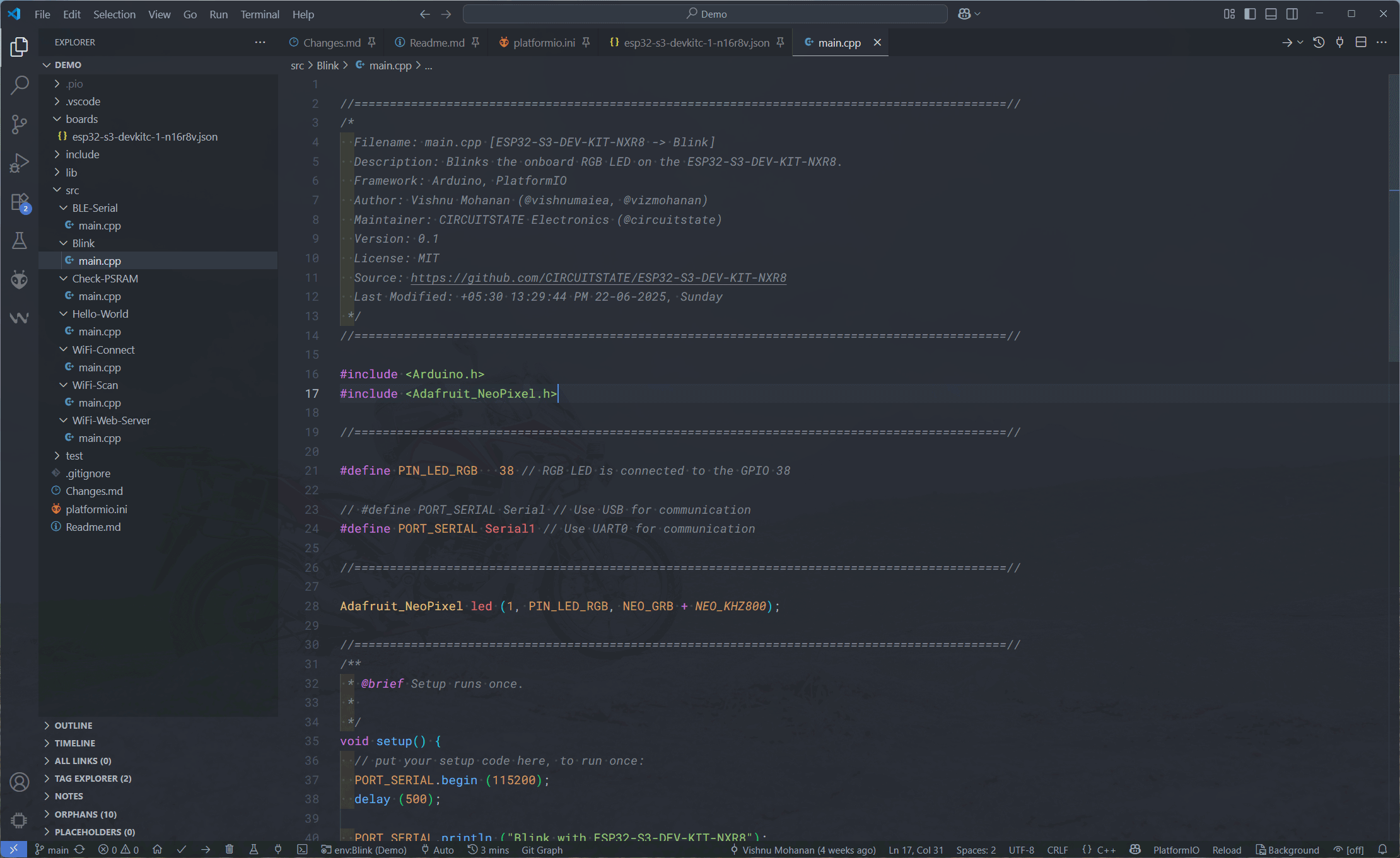
At the bottom panel, you can find the current target starting from env:. Clicking this will bring up all of the examples included in the project. Select any of them, compile and upload. Make sure to choose the correct COM port before uploading.
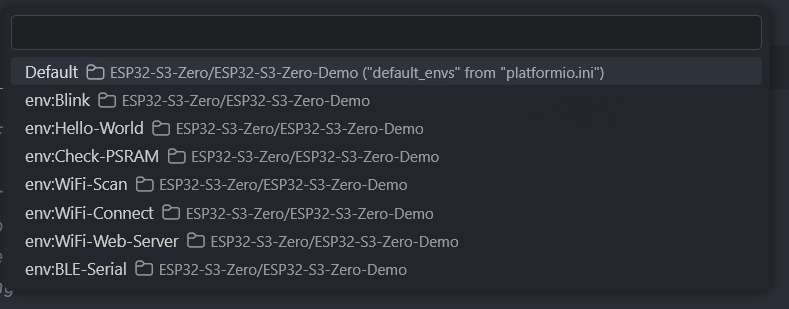
After uploading the code, you can see the Red, Blue and Green LEDs blinking alternatively. Following is the compilation and upload log.
 *  Executing task: C:\PIO\penv\Scripts\platformio.exe run --target upload --environment Blink

Processing Blink (platform: https://github.com/pioarduino/platform-espressif32/releases/download/stable/platform-espressif32.zip; board: esp32-s3-zero-s3fh4r2; framework: arduino)
--------------------------------------------------------------------------------------------------------------------------------------------------------------------------------------------------------------------
Verbose mode can be enabled via `-v, --verbose` option
PYTHONEXE updated to penv environment: C:\PIO\penv\Scripts\python.exe
CONFIGURATION: https://docs.platformio.org/page/boards/espressif32/esp32-s3-zero-s3fh4r2.html
PLATFORM: Espressif 32 (55.3.30) > Waveshare ESP32-S3-N4R2 (4 MB Flash Quad, 2 MB PSRAM Quad)
HARDWARE: ESP32S3 240MHz, 320KB RAM, 4MB Flash
DEBUG: Current (esp-builtin) On-board (esp-builtin) External (cmsis-dap, esp-bridge, esp-prog, iot-bus-jtag, jlink, minimodule, olimex-arm-usb-ocd, olimex-arm-usb-ocd-h, olimex-arm-usb-tiny-h, olimex-jtag-tiny, tumpa)
PACKAGES:
 - contrib-piohome @ 3.4.4
 - framework-arduinoespressif32 @ 3.3.0
 - framework-arduinoespressif32-libs @ 5.5.0+sha.b66b5448e0
 - tool-dfuutil-arduino @ 1.11.0
 - tool-esptoolpy @ 5.0.2
 - tool-mkfatfs @ 2.0.1
 - tool-mklittlefs @ 3.2.0
 - tool-mklittlefs4 @ 4.0.2
 - tool-mkspiffs @ 2.230.0 (2.30)
 - toolchain-xtensa-esp-elf @ 14.2.0+20241119
LDF: Library Dependency Finder -> https://bit.ly/configure-pio-ldf
LDF Modes: Finder ~ chain, Compatibility ~ soft
Found 42 compatible libraries
Scanning dependencies...
Dependency Graph
|-- Adafruit NeoPixel @ 1.15.2+sha.5e74284
Building in release mode
Compiling .pio\build\Blink\lib7e8\Adafruit NeoPixel\Adafruit_NeoPixel.cpp.o
Compiling .pio\build\Blink\lib7e8\Adafruit NeoPixel\Adafruit_Neopixel_RP2.cpp.o
Compiling .pio\build\Blink\lib7e8\Adafruit NeoPixel\esp.c.o
Compiling .pio\build\Blink\lib7e8\Adafruit NeoPixel\esp8266.c.o
Compiling .pio\build\Blink\lib7e8\Adafruit NeoPixel\kendyte_k210.c.o
Compiling .pio\build\Blink\lib7e8\Adafruit NeoPixel\psoc6.c.o
Compiling .pio\build\Blink\src\Blink\main.cpp.o
Building .pio\build\Blink\bootloader.bin
Generating partitions .pio\build\Blink\partitions.bin
Compiling .pio\build\Blink\FrameworkArduino\ColorFormat.c.o
Compiling .pio\build\Blink\FrameworkArduino\Esp.cpp.o
Compiling .pio\build\Blink\FrameworkArduino\FirmwareMSC.cpp.o
Compiling .pio\build\Blink\FrameworkArduino\FunctionalInterrupt.cpp.o
Compiling .pio\build\Blink\FrameworkArduino\HEXBuilder.cpp.o
Compiling .pio\build\Blink\FrameworkArduino\HWCDC.cpp.o
Compiling .pio\build\Blink\FrameworkArduino\HardwareSerial.cpp.o
Compiling .pio\build\Blink\FrameworkArduino\IPAddress.cpp.o
esptool v5.0.2
Creating ESP32S3 image...
Merged 2 ELF sections.
Successfully created ESP32S3 image.
Compiling .pio\build\Blink\FrameworkArduino\MD5Builder.cpp.o
Compiling .pio\build\Blink\FrameworkArduino\MacAddress.cpp.o
Compiling .pio\build\Blink\FrameworkArduino\Print.cpp.o
Compiling .pio\build\Blink\FrameworkArduino\SHA1Builder.cpp.o
Compiling .pio\build\Blink\FrameworkArduino\Stream.cpp.o
Compiling .pio\build\Blink\FrameworkArduino\StreamString.cpp.o
Compiling .pio\build\Blink\FrameworkArduino\Tone.cpp.o
Compiling .pio\build\Blink\FrameworkArduino\USB.cpp.o
Compiling .pio\build\Blink\FrameworkArduino\USBCDC.cpp.o
Compiling .pio\build\Blink\FrameworkArduino\USBMSC.cpp.o
Compiling .pio\build\Blink\FrameworkArduino\WMath.cpp.o
Compiling .pio\build\Blink\FrameworkArduino\WString.cpp.o
Compiling .pio\build\Blink\FrameworkArduino\base64.cpp.o
Compiling .pio\build\Blink\FrameworkArduino\cbuf.cpp.o
Compiling .pio\build\Blink\FrameworkArduino\chip-debug-report.cpp.o
Compiling .pio\build\Blink\FrameworkArduino\esp32-hal-adc.c.o
Compiling .pio\build\Blink\FrameworkArduino\esp32-hal-bt.c.o
Compiling .pio\build\Blink\FrameworkArduino\esp32-hal-cpu.c.o
Compiling .pio\build\Blink\FrameworkArduino\esp32-hal-dac.c.o
Compiling .pio\build\Blink\FrameworkArduino\esp32-hal-gpio.c.o
Compiling .pio\build\Blink\FrameworkArduino\esp32-hal-i2c-ng.c.o
Compiling .pio\build\Blink\FrameworkArduino\esp32-hal-i2c-slave.c.o
Compiling .pio\build\Blink\FrameworkArduino\esp32-hal-i2c.c.o
Compiling .pio\build\Blink\FrameworkArduino\esp32-hal-ledc.c.o
Compiling .pio\build\Blink\FrameworkArduino\esp32-hal-matrix.c.o
Compiling .pio\build\Blink\FrameworkArduino\esp32-hal-misc.c.o
Compiling .pio\build\Blink\FrameworkArduino\esp32-hal-periman.c.o
Compiling .pio\build\Blink\FrameworkArduino\esp32-hal-psram.c.o
Compiling .pio\build\Blink\FrameworkArduino\esp32-hal-rgb-led.c.o
Compiling .pio\build\Blink\FrameworkArduino\esp32-hal-rmt.c.o
Compiling .pio\build\Blink\FrameworkArduino\esp32-hal-sigmadelta.c.o
Compiling .pio\build\Blink\FrameworkArduino\esp32-hal-spi.c.o
Compiling .pio\build\Blink\FrameworkArduino\esp32-hal-time.c.o
Compiling .pio\build\Blink\FrameworkArduino\esp32-hal-timer.c.o
Compiling .pio\build\Blink\FrameworkArduino\esp32-hal-tinyusb.c.o
Compiling .pio\build\Blink\FrameworkArduino\esp32-hal-touch-ng.c.o
Compiling .pio\build\Blink\FrameworkArduino\esp32-hal-touch.c.o
Compiling .pio\build\Blink\FrameworkArduino\esp32-hal-uart.c.o
Compiling .pio\build\Blink\FrameworkArduino\firmware_msc_fat.c.o
Compiling .pio\build\Blink\FrameworkArduino\freertos_stats.cpp.o
Compiling .pio\build\Blink\FrameworkArduino\libb64\cdecode.c.o
Compiling .pio\build\Blink\FrameworkArduino\libb64\cencode.c.o
Compiling .pio\build\Blink\FrameworkArduino\main.cpp.o
Compiling .pio\build\Blink\FrameworkArduino\stdlib_noniso.c.o
Compiling .pio\build\Blink\FrameworkArduino\wiring_pulse.c.o
Compiling .pio\build\Blink\FrameworkArduino\wiring_shift.c.o
In file included from C:/PIO/packages/framework-arduinoespressif32/cores/esp32/esp32-hal-touch.c:19:
C:/PIO/packages/framework-arduinoespressif32-libs/esp32s3/include/driver/touch_sensor/esp32s3/include/driver/touch_sensor.h:13:2: warning: #warning "This set of Touch APIs has been deprecated, please include 'driver/touch_sens.h' instead. if you want to keep using the old APIs and ignore this warning, you can enable 'Suppress legacy driver deprecated warning' option under 'Touch Configuration' menu in Kconfig" [-Wcpp]
   13 | #warning "This set of Touch APIs has been deprecated, \
      |  ^~~~~~~
Archiving .pio\build\Blink\libFrameworkArduino.a
Indexing .pio\build\Blink\libFrameworkArduino.a
Linking .pio\build\Blink\firmware.elf
Firmware metrics can not be shown. Set the terminal codepage to "utf-8"
Retrieving maximum program size .pio\build\Blink\firmware.elf
Checking size .pio\build\Blink\firmware.elf
Advanced Memory Usage is available via "PlatformIO Home > Project Inspect"
RAM:   [=         ]   6.4% (used 20856 bytes from 327680 bytes)
Flash: [=         ]   8.0% (used 336055 bytes from 4194304 bytes)
Building .pio\build\Blink\firmware.bin
esptool v5.0.2
Creating ESP32S3 image...
Merged 2 ELF sections.
Successfully created ESP32S3 image.
Configuring upload protocol...
AVAILABLE: cmsis-dap, esp-bridge, esp-builtin, esp-prog, espota, esptool, iot-bus-jtag, jlink, minimodule, olimex-arm-usb-ocd, olimex-arm-usb-ocd-h, olimex-arm-usb-tiny-h, olimex-jtag-tiny, tumpa
CURRENT: upload_protocol = esptool
Looking for upload port...
Auto-detected: COM7
Uploading .pio\build\Blink\firmware.bin
esptool v5.0.2
Serial port COM7:
Connecting...
Connected to ESP32-S3 on COM7:
Chip type:          ESP32-S3 (QFN56) (revision v0.2)
Features:           Wi-Fi, BT 5 (LE), Dual Core + LP Core, 240MHz, Embedded Flash 4MB (XMC), Embedded PSRAM 2MB (AP_3v3)
Crystal frequency:  40MHz
USB mode:           USB-Serial/JTAG
MAC:                b8:f8:62:d7:64:d8

Uploading stub flasher...
Running stub flasher...
Stub flasher running.
Changing baud rate to 600000...
Changed.

Configuring flash size...
Auto-detected flash size: 4MB
Flash will be erased from 0x00000000 to 0x00004fff...
Flash will be erased from 0x00008000 to 0x00008fff...
Flash will be erased from 0x0000e000 to 0x0000ffff...
Flash will be erased from 0x00010000 to 0x00062fff...
SHA digest in image updated.
Compressed 20256 bytes to 13096...

Writing at 0x00000000 [░░░░░░░░░░░░░░░░░░░░░░░░░░░░░░]   0.0% 0/13096 bytes...

Writing at 0x00004f20 [██████████████████████████████] 100.0% 13096/13096 bytes...
Wrote 20256 bytes (13096 compressed) at 0x00000000 in 0.3 seconds (531.2 kbit/s).
Hash of data verified.
Compressed 3072 bytes to 118...

Writing at 0x00008000 [░░░░░░░░░░░░░░░░░░░░░░░░░░░░░░]   0.0% 0/118 bytes...

Writing at 0x00008c00 [██████████████████████████████] 100.0% 118/118 bytes...
Wrote 3072 bytes (118 compressed) at 0x00008000 in 0.0 seconds (552.8 kbit/s).
Hash of data verified.
Compressed 8192 bytes to 47...

Writing at 0x0000e000 [░░░░░░░░░░░░░░░░░░░░░░░░░░░░░░]   0.0% 0/47 bytes...

Writing at 0x00010000 [██████████████████████████████] 100.0% 47/47 bytes...
Wrote 8192 bytes (47 compressed) at 0x0000e000 in 0.1 seconds (770.9 kbit/s).
Hash of data verified.
Compressed 336464 bytes to 179417...

Writing at 0x00010000 [░░░░░░░░░░░░░░░░░░░░░░░░░░░░░░]   0.0% 0/179417 bytes...

Writing at 0x0001c42e [██░░░░░░░░░░░░░░░░░░░░░░░░░░░░]   9.1% 16384/179417 bytes...

Writing at 0x00029d03 [█████░░░░░░░░░░░░░░░░░░░░░░░░░]  18.3% 32768/179417 bytes...

Writing at 0x0002f4fb [████████░░░░░░░░░░░░░░░░░░░░░░]  27.4% 49152/179417 bytes...

Writing at 0x000352b9 [██████████░░░░░░░░░░░░░░░░░░░░]  36.5% 65536/179417 bytes...

Writing at 0x0003ab46 [█████████████░░░░░░░░░░░░░░░░░]  45.7% 81920/179417 bytes...

Writing at 0x00040479 [████████████████░░░░░░░░░░░░░░]  54.8% 98304/179417 bytes...

Writing at 0x00045c84 [███████████████████░░░░░░░░░░░]  63.9% 114688/179417 bytes...

Writing at 0x0004d102 [█████████████████████░░░░░░░░░]  73.1% 131072/179417 bytes...

Writing at 0x0005659c [████████████████████████░░░░░░]  82.2% 147456/179417 bytes...

Writing at 0x0005c4bf [███████████████████████████░░░]  91.3% 163840/179417 bytes...

Writing at 0x00062250 [██████████████████████████████] 100.0% 179417/179417 bytes...
Wrote 336464 bytes (179417 compressed) at 0x00010000 in 3.1 seconds (871.2 kbit/s).
Hash of data verified.

Hard resetting via RTS pin...
=========================================================================================== [SUCCESS] Took 15.31 seconds ===========================================================================================

Environment    Status    Duration
-------------  --------  ------------
Blink          SUCCESS   00:00:15.307
=========================================================================================== 1 succeeded in 00:00:15.307 ===========================================================================================
* Terminal will be reused by tasks, press any key to close it.Hello World
Now we will try to print a “Hello World!” message through the serial port. The default Serial instance prints to the USB-CDC serial port and the for the UART0, you have to use the Serial0.
//============================================================================================//
/*
  Filename: main.cpp [ESP32-S3-Zero -> Hello-World]
  Description: Prints "Hello World!" to the serial port every 500 milliseconds.
  Framework: Arduino, PlatformIO
  Author: Vishnu Mohanan (@vishnumaiea, @vizmohanan)
  Maintainer: CIRCUITSTATE Electronics (@circuitstate)
  Version: 0.1
  License: MIT
  Source: https://github.com/CIRCUITSTATE/ESP32-S3-Zero-Demo
  Last Modified: +05:30 22:40:21 PM 29-10-2025, Wednesday
 */
//============================================================================================//

#include <Arduino.h>

//============================================================================================//

#define PORT_SERIAL Serial // Use USB for communication
// #define PORT_SERIAL Serial0 // Use UART0 for communication

//============================================================================================//
/**
 * @brief Setup runs once.
 *
 */
void setup() {
  PORT_SERIAL.begin (115200);
}

//============================================================================================//
/**
 * @brief Infinite loop.
 *
 */
void loop() {
  PORT_SERIAL.println ("Hello World!");
  delay (500);
}

//============================================================================================//
Wi-Fi Web Server
There are many Wi-Fi-related examples available from Arduino. Here, we are going to show you a simple web server sketch that will connect your ESP32-S3 to a Wi-Fi network and allow you to control an LED from a web browser. We will use the built-in RGB LED as the control target. In place of yourssid and yourpassword, you need to enter the actual Wi-Fi network name and the password before uploading the code. Below is the code.
//============================================================================================//
/*
  Filename: main.cpp [ESP32-S3-Zero -> WiFi-Web-Server]
  Description: A simple web server that lets you blink an LED via the web. This sketch will print
  the IP address of your WiFi Shield (once connected) to the Serial monitor. From there,
  you can open that address in a web browser to turn on and off the built-in LED.

  If the IP address of your shield is yourAddress:
  http://yourAddress/H turns the LED on
  http://yourAddress/L turns it off

  This example is written for a network using WPA2 encryption. For insecure
  WEP or WPA, change the Wifi.begin() call and use Wifi.setMinSecurity()
  accordingly.

  Created for arduino 25 Nov 2012 by Tom Igoe

  Framework: Arduino, PlatformIO
  Author: Vishnu Mohanan (@vishnumaiea, @vizmohanan)
  Maintainer: CIRCUITSTATE Electronics (@circuitstate)
  Version: 0.1
  License: MIT
  Source: https://github.com/CIRCUITSTATE/ESP32-S3-Zero-Demo
  Last Modified: +05:30 00:05:12 AM 30-10-2025, Thursday
 */
//============================================================================================//

#include <WiFi.h>
#include <Adafruit_NeoPixel.h>

//============================================================================================//

#define PIN_LED_RGB   21 // RGB LED is connected to the GPIO 21

#define PORT_SERIAL Serial // Use USB for communication
// #define PORT_SERIAL Serial0 // Use UART0 for communication

//============================================================================================//

Adafruit_NeoPixel led (1, PIN_LED_RGB, NEO_GRB + NEO_KHZ800);

const char* ssid = "your_wifi_ssid";
const char* password = "your_wifi_password";

WiFiServer server (80);

//============================================================================================//

void setup() {
  PORT_SERIAL.begin (115200);
  delay (10);

  led.begin();
  led.clear();

  // We start by connecting to a WiFi network
  PORT_SERIAL.println();
  PORT_SERIAL.println();
  PORT_SERIAL.print ("Connecting to ");
  PORT_SERIAL.print (ssid);

  WiFi.begin (ssid, password);

  while (WiFi.status() != WL_CONNECTED) {
    delay (500);
    PORT_SERIAL.print (".");
  }

  PORT_SERIAL.println ("");
  PORT_SERIAL.println ("WiFi connected.");
  PORT_SERIAL.print ("IP address: ");
  PORT_SERIAL.println (WiFi.localIP());
  server.begin();
}

//============================================================================================//

void loop() {
  WiFiClient client = server.available();  // listen for incoming clients

  if (client) {                     // if you get a client,
    PORT_SERIAL.println ("New Client.");  // print a message out the serial port
    String currentLine = "";  // make a String to hold incoming data from the client

    while (client.connected()) {  // loop while the client's connected
      if (client.available()) {   // if there's bytes to read from the client,
        char c = client.read();   // read a byte, then
        PORT_SERIAL.write (c);          // print it out the serial monitor
        if (c == '\n') {          // if the byte is a newline character
          // if the current line is blank, you got two newline characters in a
          // row. that's the end of the client HTTP request, so send a response:
          if (currentLine.length() == 0) {
            // HTTP headers always start with a response code (e.g. HTTP/1.1 200
            // OK) and a content-type so the client knows what's coming, then a
            // blank line:
            client.println ("HTTP/1.1 200 OK");
            client.println ("Content-type:text/html");
            client.println();
            // the content of the HTTP response follows the header:
            client.print ("Click <a href=\"/H\">here</a> to turn the LED on.<br>");
            client.print ("Click <a href=\"/L\">here</a> to turn the LED off.<br>");
            // The HTTP response ends with another blank line:
            client.println();
            // break out of the while loop:
            break;
          }
          else {  // if you got a newline, then clear currentLine:
            currentLine = "";
          }
        }
        else if (c != '\r') {  // if you got anything else but a carriage return character,
          currentLine += c;      // add it to the end of the currentLine
        }
        // Check to see if the client request was "GET /H" or "GET /L":
        if (currentLine.endsWith ("GET /H")) {
          led.setPixelColor (0, led.Color (0, 150, 0));
          led.show();
        }
        if (currentLine.endsWith ("GET /L")) {
          led.clear();
          led.show();
        }
      }
    }
    // close the connection:
    client.stop();
    PORT_SERIAL.println ("Client Disconnected.");
  }
}

//============================================================================================//
As soon as your board is connected to the Wi-Fi network, it will print the IP address assigned to it. The IP address is assigned by the Wi-Fi access point (AP, or the router) and can not be fixed. The AP will assign the next free IP when your board tries to reconnect. This makes the IP dynamic. You can open the serial monitor and reset the board to see the board’s IP address.
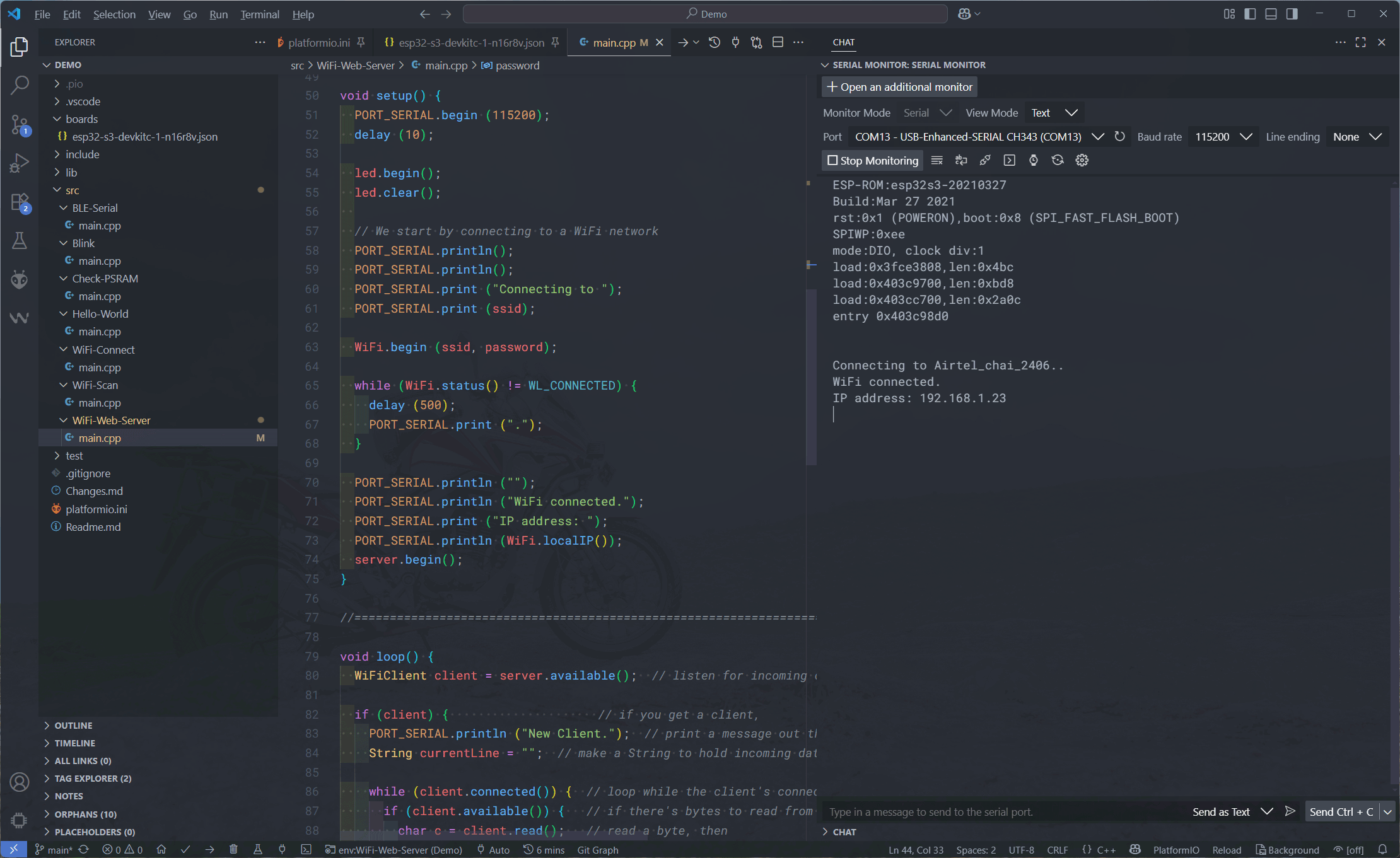
If you copy the IP address and paste it into a web browser, you will get a page like the one below. In our case, the IP address is 192.168.1.23. The board opens HTTP port 80 as soon as it is connected to the network. That is why we can open the page served by the ESP32-S3 board. You can click on the two links to either turn on or off the LED. When you click on the links, an extra parameter is sent with the address. The parameter is either H (High) or L (Low). When the web server receives this parameter, it turns the LED ON/OFF.
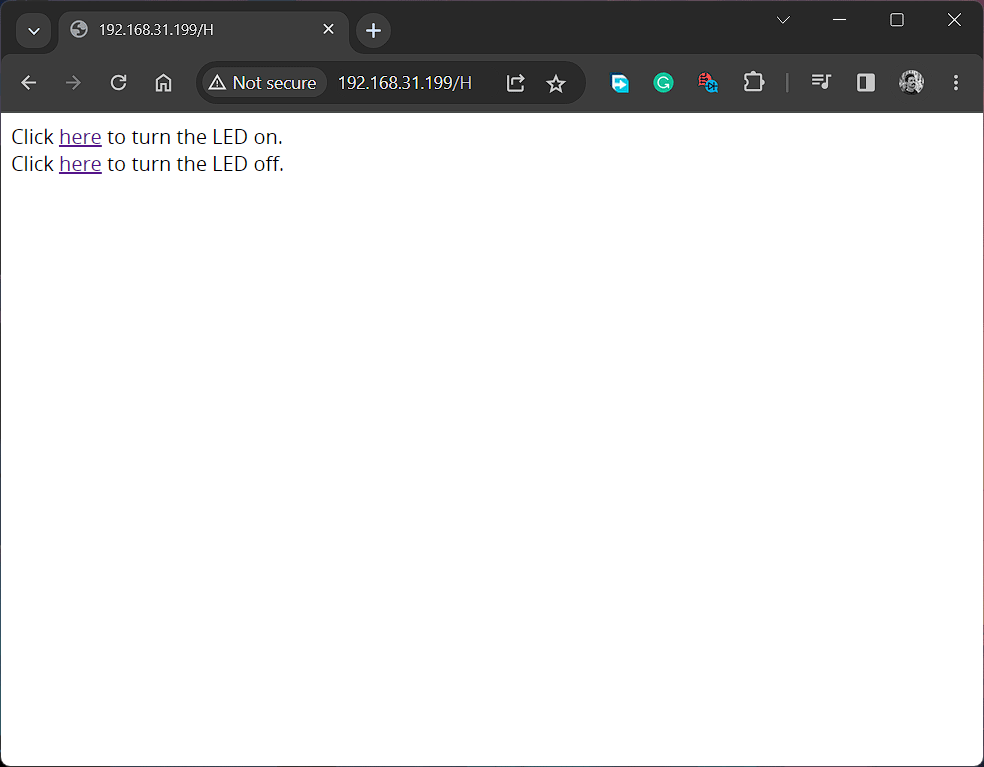
Bluetooth LE
Unlike the ESP32 which supports both Classic and Low Energy (LE) versions of Bluetooth, the ESP32-S3 only supports BLE v5. To demonstrate the BLE feature of the ESP32-S3 board, we are going to create a simple Nordic UART Service example with which you can send and receive serial data using a serial monitor and the NRF Connect app from Nordic Semiconductor. Try uploading the following code to your ESP32 board.
//============================================================================================//
/*
  Filename: main.cpp [ESP32-S3-Zero -> BLE-Serial]
  Description: Based on Neil Kolban example for IDF:
  https://github.com/nkolban/esp32-snippets/blob/master/cpp_utils/tests/BLE%20Tests/SampleNotify.cpp
  Ported to Arduino ESP32 by Evandro Copercini. Modified by CIRCUITSTATE Electronics.
  This example created a BLE service with ID 6E400001-B5A3-F393-E0A9-E50E24DCCA9E
  (Nordic UART Service) and device name "UART Service". You can find the device by scanning
  the BLE. There are two associated characteristics:

  1. 6E400002-B5A3-F393-E0A9-E50E24DCCA9E - RX Characteristic
  Data you send through serial monitor will be received on the device end through this.
  2. 6E400003-B5A3-F393-E0A9-E50E24DCCA9E - TX Characteristic

  Data you send from the device uising Write operation will be sent back to the serial monitor
  though this. The design of creating the BLE server is:
  1. Create a BLE Server
  2. Create a BLE Service
  3. Create a BLE Characteristic on the Service
  4. Create a BLE Descriptor on the characteristic
  5. Start the service.
  6. Start advertising.

  Framework: Arduino, PlatformIO
  Author: Vishnu Mohanan (@vishnumaiea, @vizmohanan)
  Maintainer: CIRCUITSTATE Electronics (@circuitstate)
  Version: 0.1
  License: MIT
  Source: https://github.com/CIRCUITSTATE/ESP32-S3-Zero-Demo
  Last Modified: +05:30 00:13:20 AM 30-10-2025, Thursday
 */
//============================================================================================//

#include <Arduino.h>
#include <BLE2902.h>
#include <BLEDevice.h>
#include <BLEServer.h>
#include <BLEUtils.h>

//============================================================================================//

#define PORT_SERIAL Serial // Use USB for communication
// #define PORT_SERIAL Serial0 // Use UART0 for communication

// See the following for generating UUIDs:
// https://www.uuidgenerator.net/
#define SERVICE_UUID              "6E400001-B5A3-F393-E0A9-E50E24DCCA9E"  // UART service UUID
#define CHARACTERISTIC_UUID_RX    "6E400002-B5A3-F393-E0A9-E50E24DCCA9E"
#define CHARACTERISTIC_UUID_TX    "6E400003-B5A3-F393-E0A9-E50E24DCCA9E"

//============================================================================================//

BLEServer *pServer = NULL;
BLECharacteristic *pTxCharacteristic;
bool deviceConnected = false;
bool oldDeviceConnected = false;

//============================================================================================//

class MyServerCallbacks : public BLEServerCallbacks {
  void onConnect (BLEServer *pServer) { deviceConnected = true; };
  void onDisconnect (BLEServer *pServer) { deviceConnected = false; }
};

//============================================================================================//

class MyCallbacks : public BLECharacteristicCallbacks {
  void onWrite (BLECharacteristic *pCharacteristic) {
    String rxValue = pCharacteristic->getValue();
    if (rxValue.length() > 0) {
      PORT_SERIAL.print ("Received Value: ");
      for (int i = 0; i < rxValue.length(); i++) PORT_SERIAL.print (rxValue [i]);
      PORT_SERIAL.println();
    }
  }
};

//============================================================================================//

void setup() {
  PORT_SERIAL.begin (115200);
  // Create the BLE Device
  BLEDevice::init ("UART Service");
  // Create the BLE Server
  pServer = BLEDevice:: createServer();
  pServer->setCallbacks (new MyServerCallbacks());
  // Create the BLE Service
  BLEService *pService = pServer->createService (SERVICE_UUID);
  // Create a BLE Characteristic
  pTxCharacteristic = pService->createCharacteristic (CHARACTERISTIC_UUID_TX, BLECharacteristic::PROPERTY_NOTIFY);
  pTxCharacteristic->addDescriptor (new BLE2902());
  BLECharacteristic *pRxCharacteristic = pService->createCharacteristic (CHARACTERISTIC_UUID_RX, BLECharacteristic::PROPERTY_WRITE);
  pRxCharacteristic->setCallbacks (new MyCallbacks());
  // Start the service
  pService->start();
  // Start advertising
  pServer->getAdvertising()->start();
  PORT_SERIAL.println ("Waiting a client connection to notify..");
}

//============================================================================================//

void loop() {
  if (deviceConnected) {
    if (PORT_SERIAL.available() > 0) {
      String serialString = PORT_SERIAL.readString();
      PORT_SERIAL.println ("Sending Value: " + serialString);
      pTxCharacteristic->setValue (serialString.c_str());
      pTxCharacteristic->notify();
      delay (10);  // bluetooth stack will go into congestion, if too many packets are sent
    }
  }
  // disconnecting
  if (!deviceConnected && oldDeviceConnected) {
    delay (500);  // give the bluetooth stack the chance to get things ready
    pServer->startAdvertising();  // restart advertising
    PORT_SERIAL.println ("Start advertising");
    oldDeviceConnected = deviceConnected;
  }
  // connecting
  if (deviceConnected && !oldDeviceConnected) {
    // do stuff here on connecting
    oldDeviceConnected = deviceConnected;
  }
}

//============================================================================================//
After uploading the code to your board, you can open the serial monitor with a baudrate 115200. To connect to the board, you first need to install the NRF Connect app on your smartphone and launch it. You can also use the desktop app if you have any Nordic BLE development dongle/board. In the SCANNER window, you can scan for all Bluetooth devices and if the ESP32-S3 is up and running, you should see a device named “UART Service”. Connect to the device using the CONNECT button. After connecting, the app will open a new tab that lists all the services and characteristics served by the Bluetooth device. In our case, there is only a single BLE service Nordic UART Service, and the two characteristics associated with it; TX Characteristic and RX Characteristic. From the serial monitor, you can send any data and it will be received by the TX Characteristic. In order to see the data, simply enable the notification by tapping the triple download button on the app. Here, we are sending “Hello” from the serial monitor. The data will be shown as the Value in the app.
To send any data back to the serial monitor, you can use the RX Characteristic. Use the up-pointing button in the RX Characteristic to write a new value. Here, we are sending the value “World”. As soon as you hit SEND, the value will appear on the serial monitor.


Debugging
ESP32-S3 projects can be debugged using the official ESP-Prog debug probe. We have a dedicated tutorial on debugging ESP32 code using PlatformIO. Even though this was written for the ESP32, the files and configurations can be easily modified to support ESP32-S3.
Debugging ESP32 Arduino & ESP-IDF Projects using ESP-Prog and PlatformIO
Learn how to use the official Espressif ESP-Prog to debug your ESP32 Arduino and ESP-IDF projects with the help of PlatformIO.
With that, we can wind up this tutorial. There is so much to learn about the awesome ESP32-S3. But we can not cover everything in a single post. In the upcoming tutorials, we will delve deep into the features of ESP32-S3. Hope this tutorial was informative and helpful to you. If not, please let us know in the comments how we can improve this tutorial. Happy tinkering 🔧
Links
- ESP32-S3-Zero – Waveshare
- ESP32-S3-Zero – Wiki
- Espressif ESP32-S3 SoC – Official Product Page
- ESP32-S3 SoC – Datasheet [PDF]
- ESP32-S3 SoC Series – Errata
- Espressif Chip Identification Information
- Getting Started with Arduino Nano ESP32 Wi-Fi & IoT Development Board
- Espressif ESP-Prog ESP32 Debugger/Programmer
- ESP32-S3 Partition Tables
- ESP32-S3 Bootloader and Startup
- ESP32-S3 JTAG Debugging
- ESP32-S3 SPI Flash Modes
- ESP32-S3 Flasher Stub
- arduino-esp32 – GitHub
- ESP-IDF – GitHub
- Espressif esptool – GitHub
- FreeRTOS – Official Website
- Visual Studio Code – Download
- Arduino CLI
- PlatformIO – Official Website
- nRF Connect for Mobile – Google Playstore
Short Link
- Short URL to this page – https://www.circuitstate.com/getstartesp32-s3-zero